Two edges, two volumes
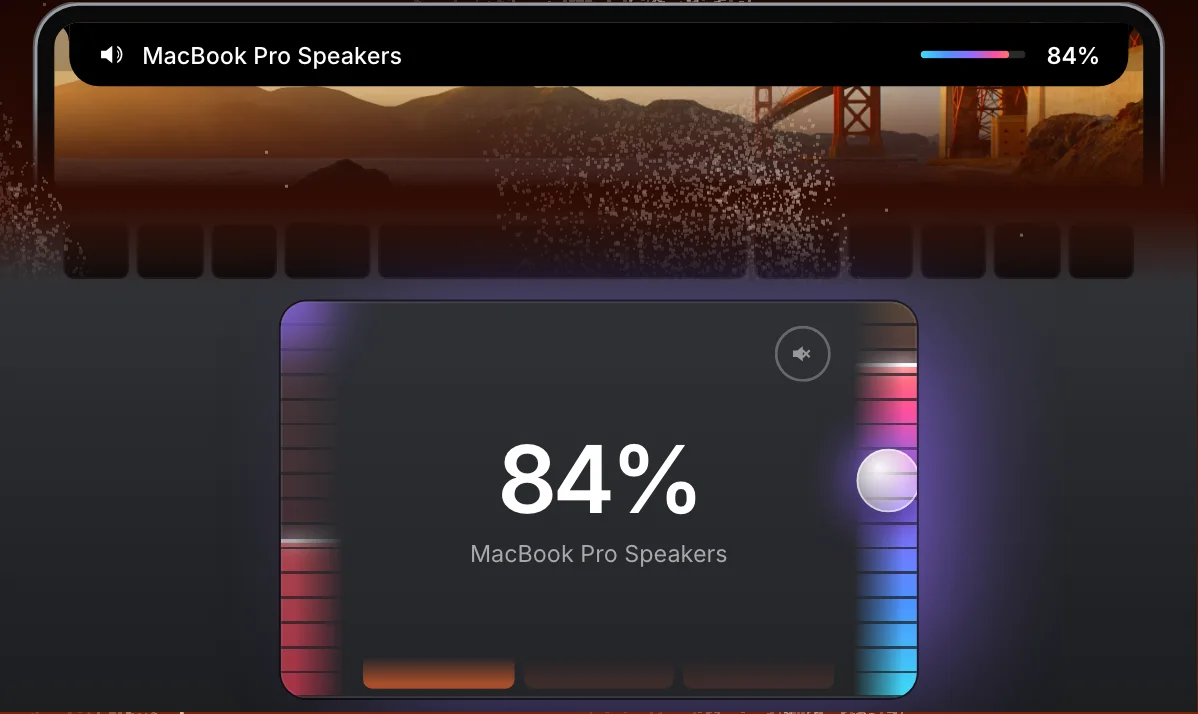
The right edge of the trackpad is the Mac’s volume. Slide a finger up or down it and the volume follows. The left edge is the volume of the app in front, so you can turn down the thing you are using and leave everything else alone.
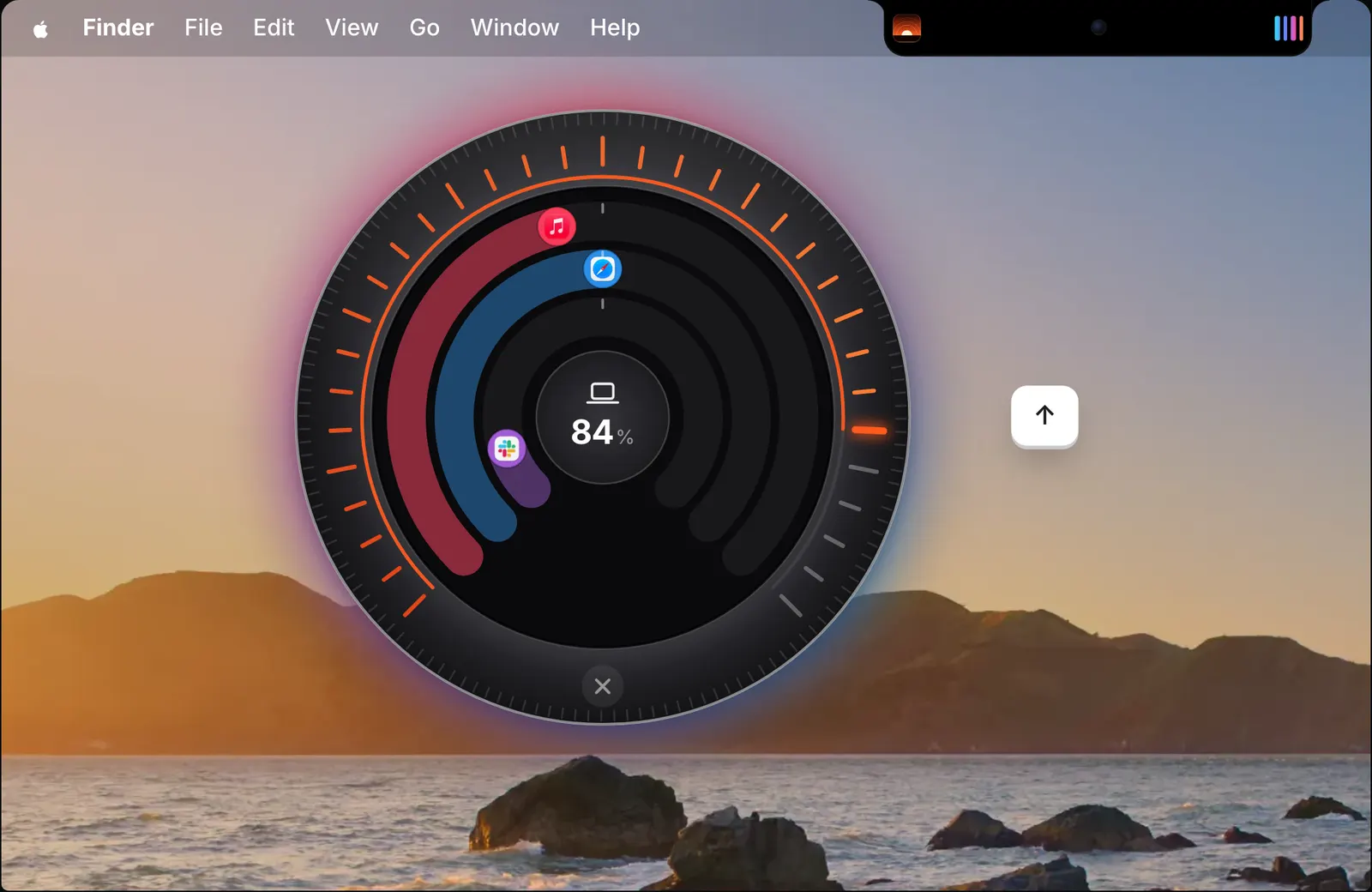
While you slide, the notch shows what you are changing and its level. In the picture the right edge is at 84%: the notch names the output, MacBook Pro Speakers, with the level as a bar and a figure.
On a MacBook it is the quickest of SoundBar’s controls, because your hand is already on the trackpad. You do not move the pointer to the menu bar, open anything, or look for the volume keys. Trackpad edges are off until you turn them on in Settings > Notch.
Two optional gestures
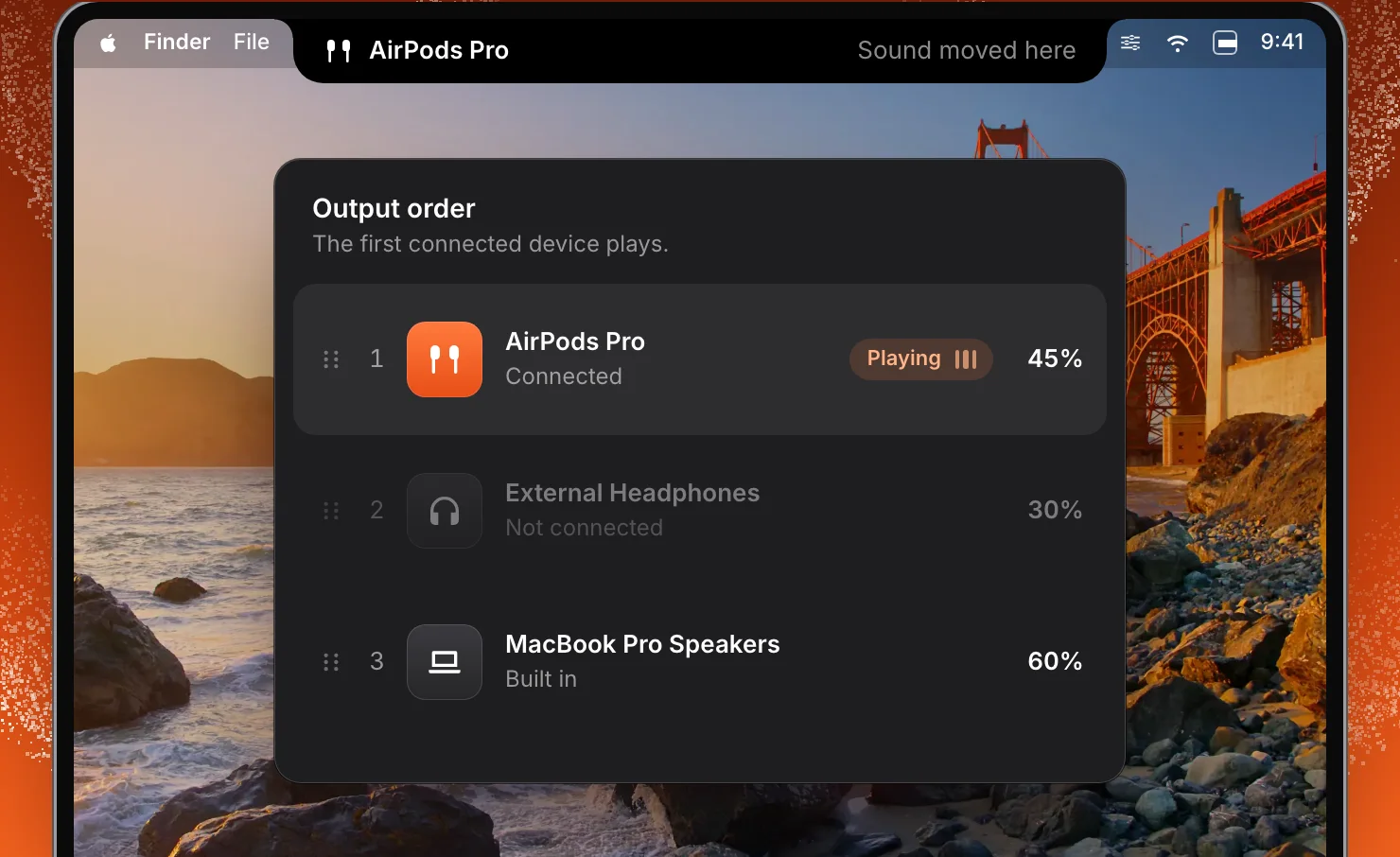
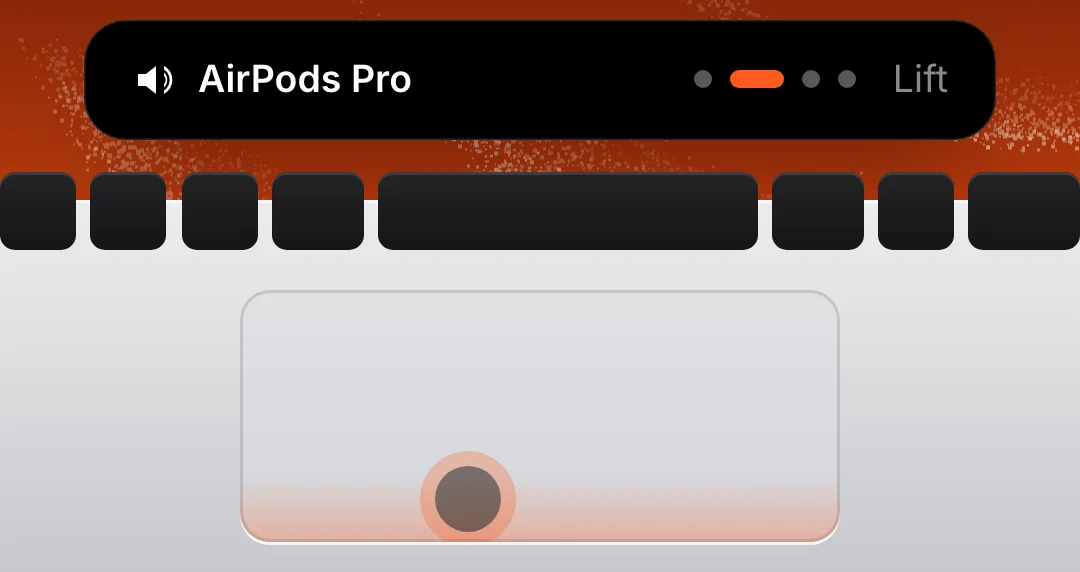
Two more gestures can be switched on. A slide along the bottom edge goes through your output devices, and the sound moves to the one you chose when you lift your finger. A double-tap in the top-right corner mutes the Mac.
While you slide along the bottom edge, the notch names the device you are on, with a dot for each output and the word Lift. The device you switch to comes back at its own volume.
Both are optional. You can use the side edges for volume and leave these off.
The pointer stays where it is
A slide along the edge changes the volume and leaves the pointer where it was. Sliding along the edge needs no permission. If you want the pointer held perfectly still during a slide, you can allow Accessibility access, which SoundBar uses to hold the pointer in place.
With trackpad edges on, a slide along the edge is read as a volume change, and the pointer is not carried along with it.
Haptic feedback and edge width
The trackpad taps lightly at each step of the volume, so you can feel how far you have gone without looking.
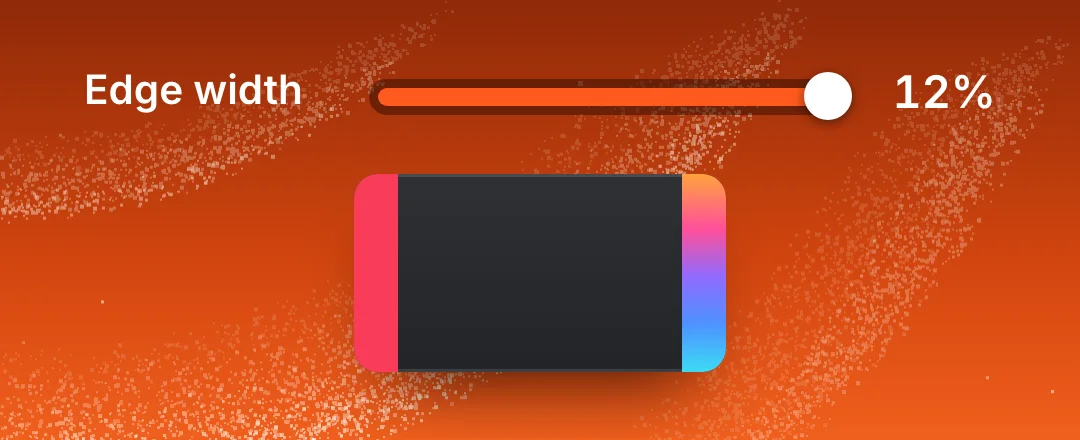
You can set how wide the edges are. A wider edge is easier to find. A narrower one leaves more of the trackpad for the pointer.
The mixer has haptics too: the trackpad taps at 100% and at each end of a slider.
How to use it
- 1
Turn on trackpad edges
Open Settings > Notch in SoundBar and switch them on.
- 2
Slide along the right edge
Up or down, for the Mac’s volume.
- 3
Slide along the left edge
For the volume of the app in front.
- 4
Add the optional gestures
The bottom edge to switch output, and a double-tap in the top-right corner to mute.
The details
- Right edge
- The Mac’s volume
- Left edge
- The front app’s volume
- Bottom edge (optional)
- Choose an output. Lift to switch
- Top-right corner (optional)
- Double-tap to mute the Mac
- Turn it on
- Settings > Notch
- Permission
- None. Accessibility only to hold the pointer perfectly still
Questions
Can I change the volume from the trackpad on a Mac?
Yes, with SoundBar. Turn on trackpad edges in Settings > Notch, then slide a finger up or down the right edge for the Mac’s volume, or the left edge for the front app’s.
Will the pointer move while I slide?
No. A slide changes the volume and leaves the pointer where it was.
Does it need Accessibility permission?
Not for sliding. Accessibility is asked for only if you want the pointer held perfectly still while a finger slides along the edge.
Can I switch output device from the trackpad?
Yes. It is optional: a slide along the bottom edge chooses a device, and lifting your finger switches to it.
I use a mouse. Is there something like it?
Yes. The corner dial works with any mouse: push the pointer into a corner of the screen and scroll.
The same feature on the app's own site: soundbarmac.com/