A priority list for your outputs
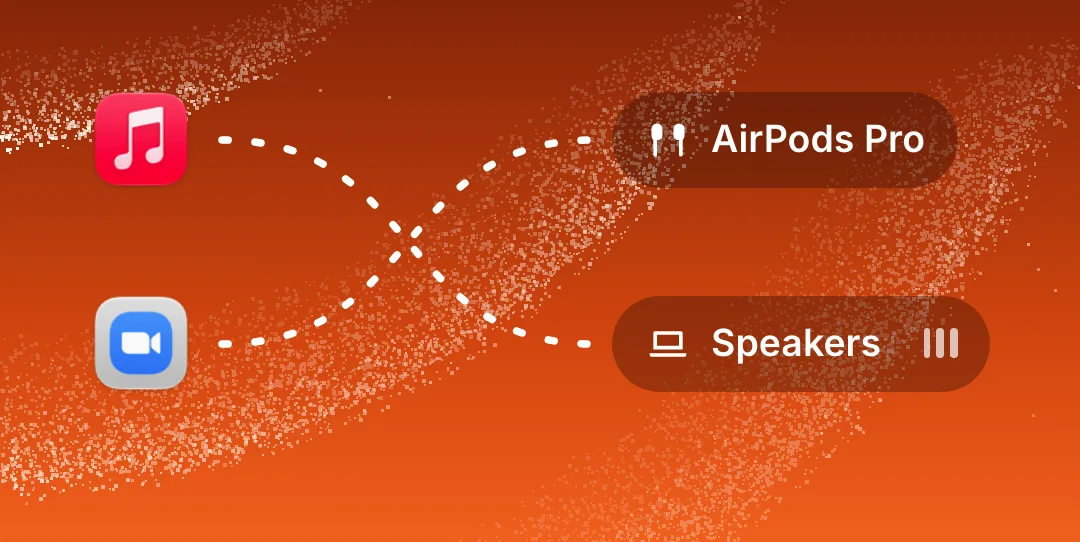
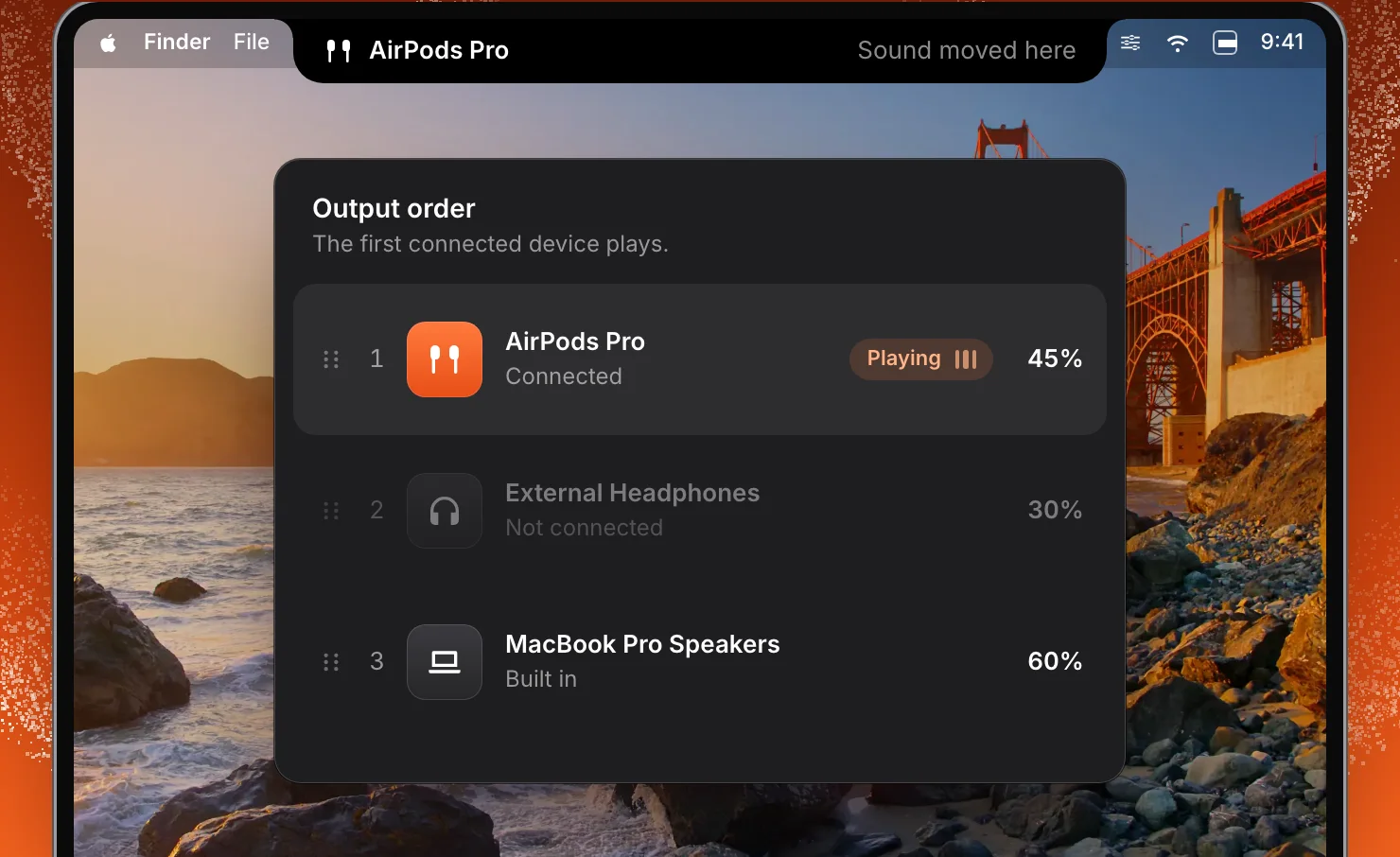
Drag your output devices into the order you prefer. The highest device in the list that is connected becomes the output. Connect your AirPods and sound moves to them. When they are gone, the output is the next device in the list that is still connected.
You decide once which device wins. After that there is nothing to pick: the order does it each time a device connects or goes away. In the picture, AirPods Pro come first, External Headphones second and the MacBook Pro’s speakers last.
The list shows each device with its place in the order, whether it is connected, and which one is playing.
Each device keeps its own volume
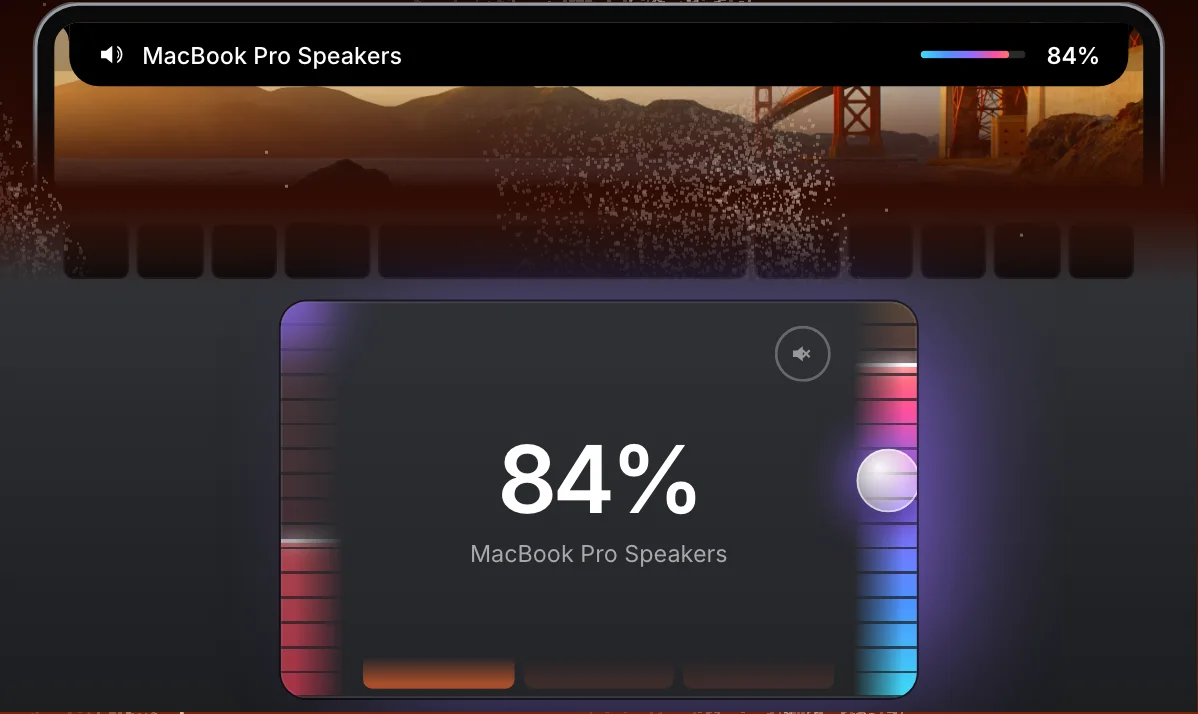
A volume that suits the speakers is usually wrong for headphones. SoundBar remembers a volume for each output device and brings it back when sound moves there. Your headphones return at the level you last used with them, not at the level the speakers were on.
In the list, each device shows the volume it is kept at, so you can see what you will get before you connect it.
The notch tells you when sound moves
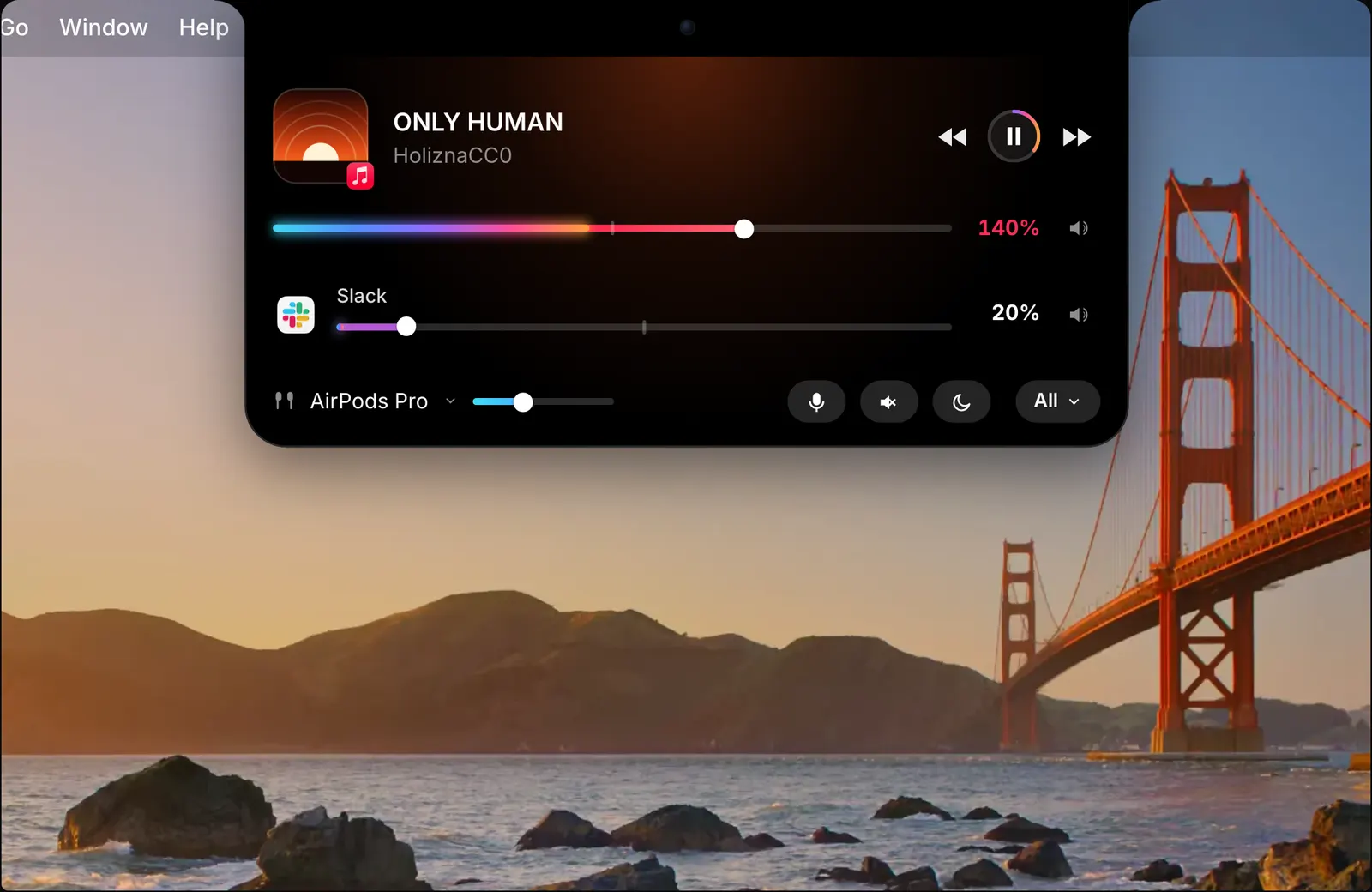
When the output changes, a short notice in the notch names the new device and says that sound has moved to it. A notice also appears when a device connects. You do not have to open anything to know where the sound is going.

Microphones and alert sounds
Input devices have a priority list of their own, separate from the outputs, so the microphone you prefer is used when it is connected. A headset’s microphone can sit above the built-in one, for example, and be picked whenever the headset is there.
Alert sounds can follow the output with everything else, or stay on one device.
Switching by hand, groups and profiles
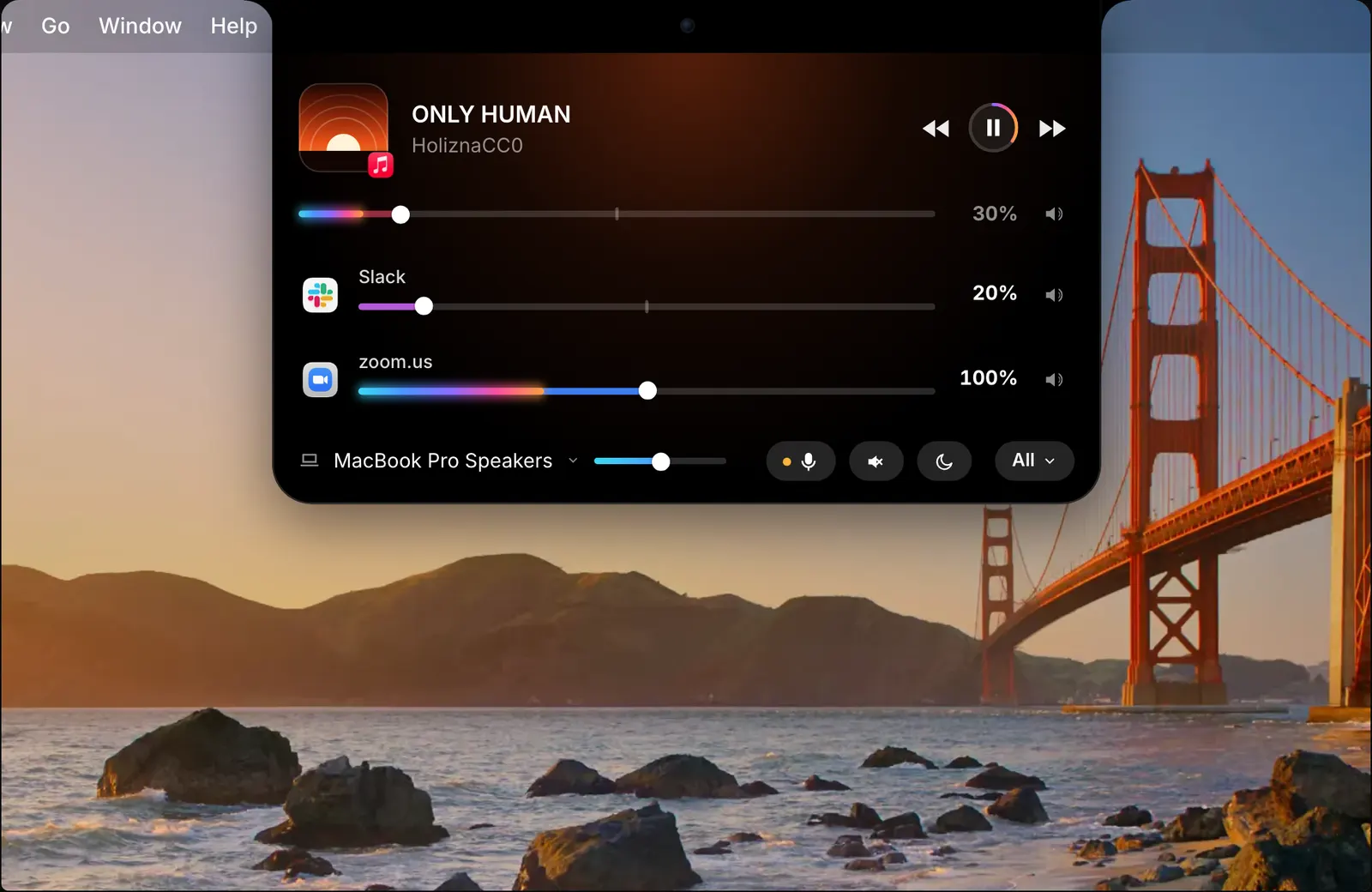
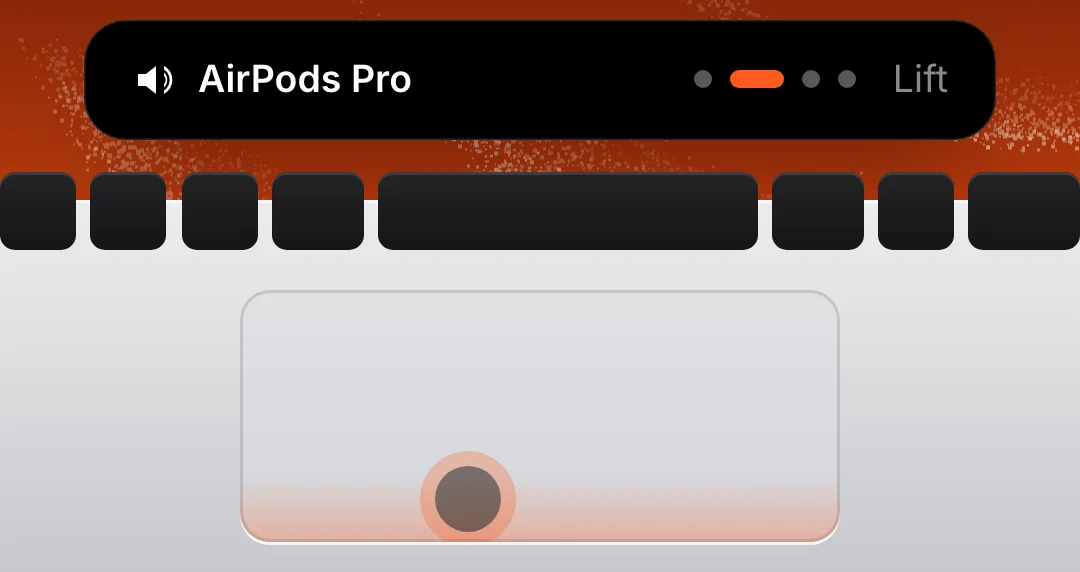
You can still choose a device yourself. The mixer shows the current output and lets you change it. With trackpad edges on, slide a finger along the bottom edge of the trackpad to go through your devices, and lift to switch. The Shortcuts app has a Set Output Device action as well.
Several speakers can be combined into one group with a single volume. A profile can be applied when a device connects, which changes every volume and setting in one go.
How to use it
- 1
Put your outputs in order
Drag the devices into the order you prefer, favourite first.
- 2
Connect a device
SoundBar makes the highest connected device in the list the output.
- 3
Set its volume once
Each device keeps its own volume and comes back at it next time.
The details
- Rule
- The highest connected device in your list plays
- Volume
- Remembered for each output device
- Inputs
- A separate priority list
- Alert sounds
- Follow the output, or stay on one device
- By hand
- From the mixer, the trackpad’s bottom edge, or a Shortcuts action
- Notice
- In the notch, when sound moves
Questions
Can my Mac switch to headphones automatically?
Yes. Put your outputs in order of preference in SoundBar. It switches to the first one that is connected.
Will my headphones start at the speakers’ volume?
No. Each output device keeps its own volume, and SoundBar switches to a device at the volume it had last time.
Does it work for microphones too?
Yes. Input devices have their own priority list.
How do I know when the output has changed?
The notch shows a short notice that names the device the sound moved to.
Can I switch output without opening anything?
Yes, with trackpad edges on. Slide a finger along the trackpad’s bottom edge to choose a device, and lift to switch.
The same feature on the app's own site: soundbarmac.com/