One app, one output
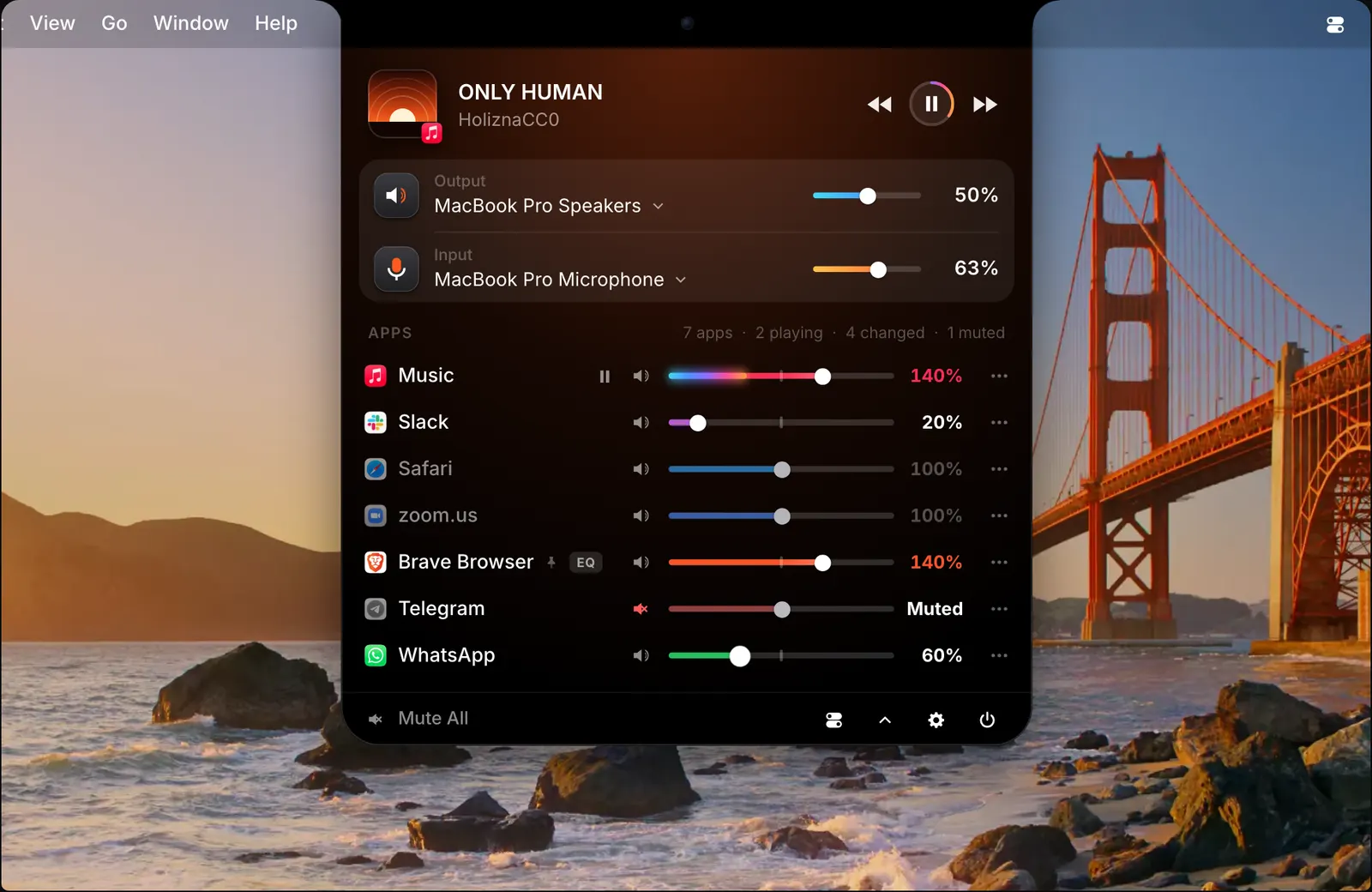
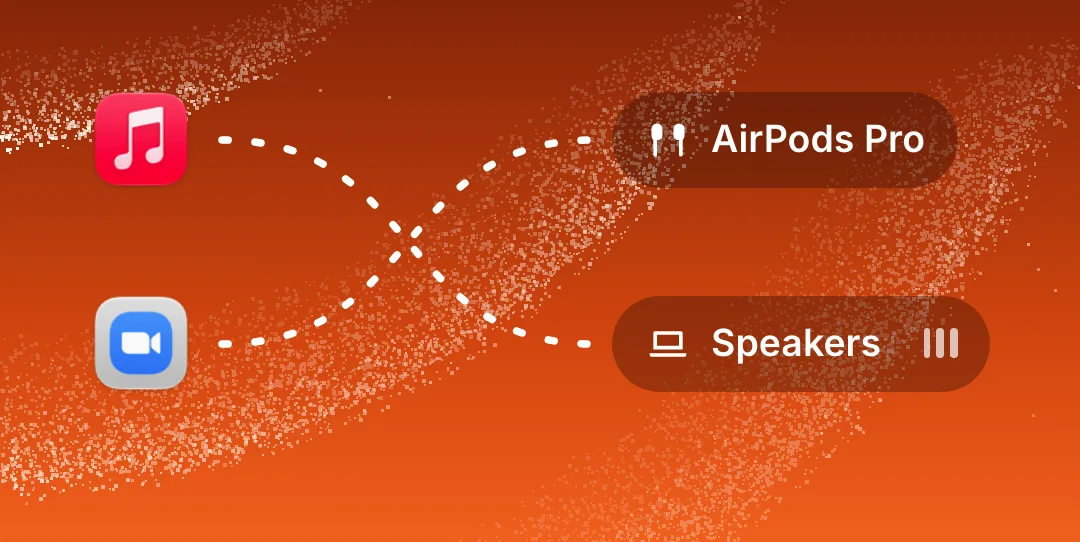
An output device is whatever your Mac plays sound through: the built-in speakers, a pair of headphones, your AirPods. SoundBar lets you choose one for each app. The usual case is a call and some music. The call goes to your AirPods, the music stays on the speakers, and both play at once.
It helps whenever two kinds of sound should not share a device. A video can play through the speakers while Slack’s pings stay in your headphones.
An app you leave alone keeps using the default output, as it did before.
Where to set it
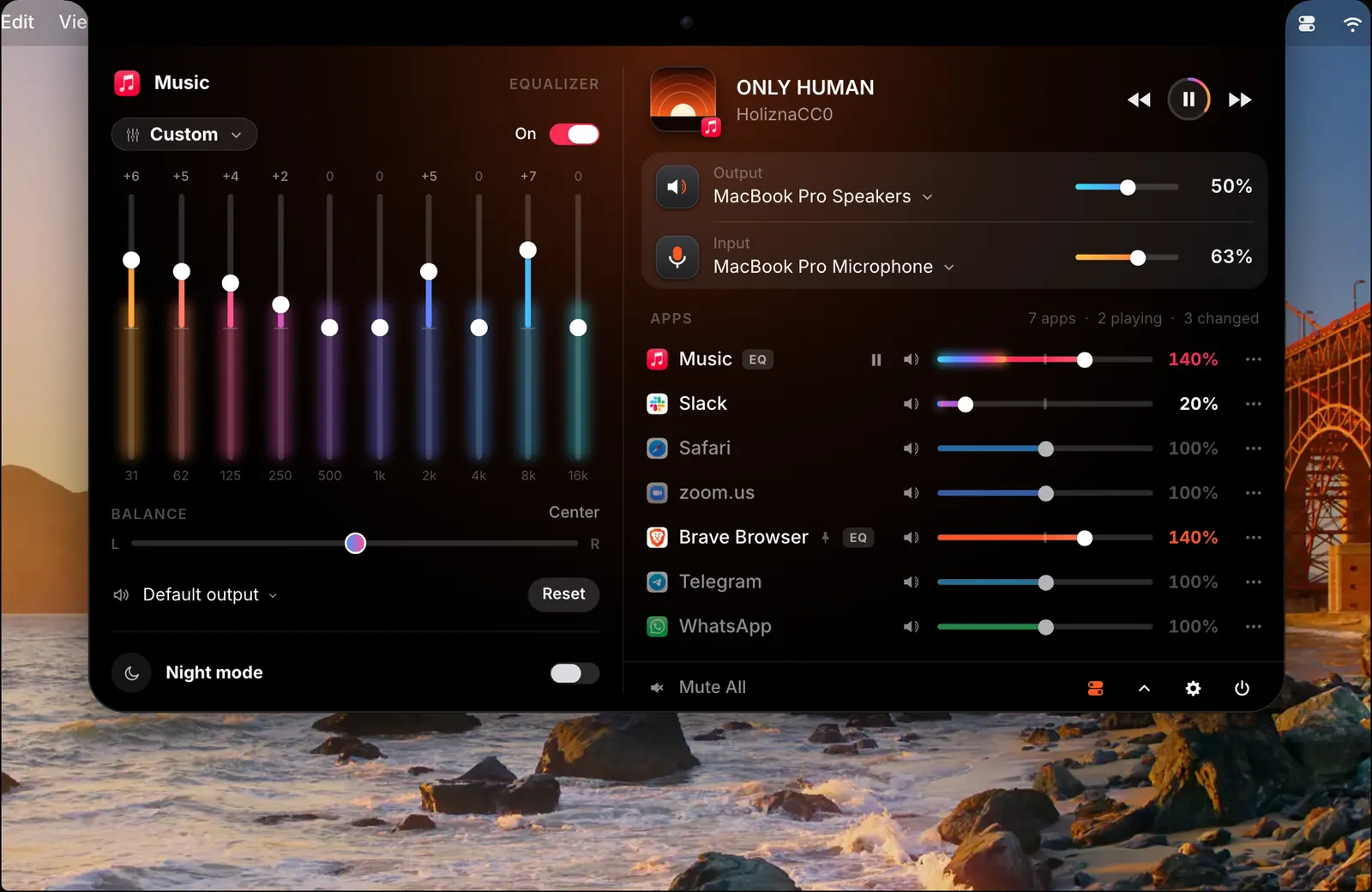
Click All in the mixer and turn on the equalizer column. Under the selected app’s bands and balance is a line that says where the app plays. It reads Default output until you choose a device for that app.
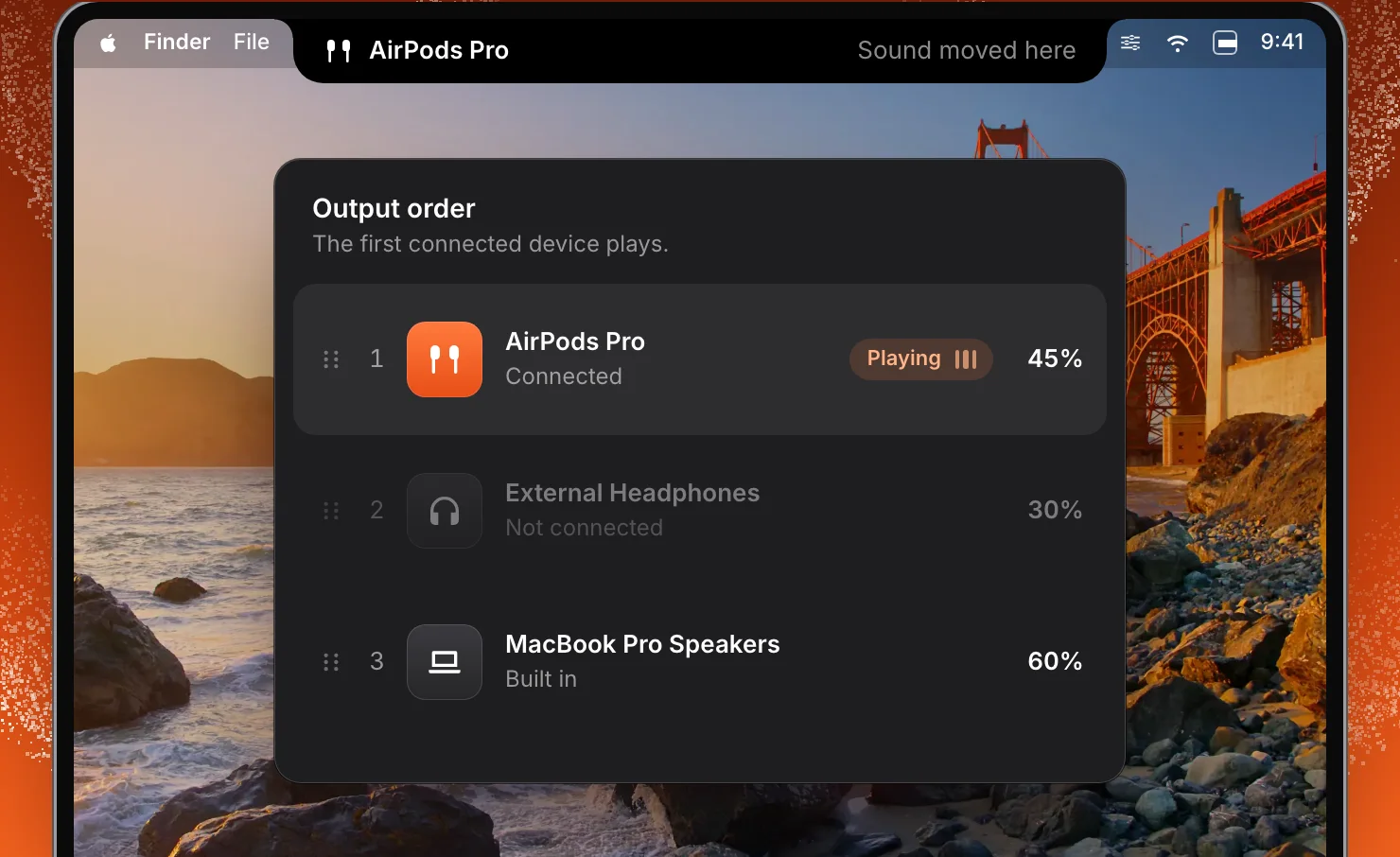
You can do the same from the keyboard. Press ⌃⌥Space to open the command palette and type something like “Music through AirPods”. Press Return and the notch confirms that Music has moved. The Shortcuts app has a Set Output Device action as well.
It works with the rest of the mixer
An app’s output is one of its settings in SoundBar, next to its volume, mute, equalizer and balance, and it is saved on your Mac with them.
The app still has its own slider, so the music on the speakers and the call in your ears can sit at different levels. Each output device also keeps a volume of its own.
The default output is still chosen the usual way, by you or by SoundBar’s priority list of devices, and the apps you have not moved follow it. A profile saves all volumes and settings, and applies them again with a click.
Several speakers as one output
If you want the same sound from more than one speaker, SoundBar can combine several speakers into a group. The group behaves as one output with a single volume. In the picture, a group called Desk pair is two speakers and one output, with one slider for both.

What it is not for
SoundBar plays apps through output devices. It does not record an app’s audio, and it is not a way to capture one app’s sound into another app for a stream or a podcast. It is not a music production tool either: it is not a DAW and does not host audio plug-ins.
The details
- Set for
- Each app, one output device each
- Until you choose
- The app uses the default output
- From the keyboard
- ⌃⌥Space, then for example “Music through AirPods”
- Speaker groups
- Several speakers as one output with a single volume
- Saved
- With the app’s other settings, on your Mac
Questions
Can each app use a different output device?
Yes. Each app can play through its own output, for example music through the speakers and a call through your AirPods.
Can two apps play through different devices at the same time?
Yes. Both apps keep playing, each through the device you chose for it.
Can I move an app to another output from the keyboard?
Yes. Press ⌃⌥Space, type a command such as “Music through AirPods”, and press Return.
Can SoundBar send an app’s audio into another app?
No. It plays apps through output devices. It is not for recording an app or capturing its audio into another app.
The same feature on the app's own site: soundbarmac.com/