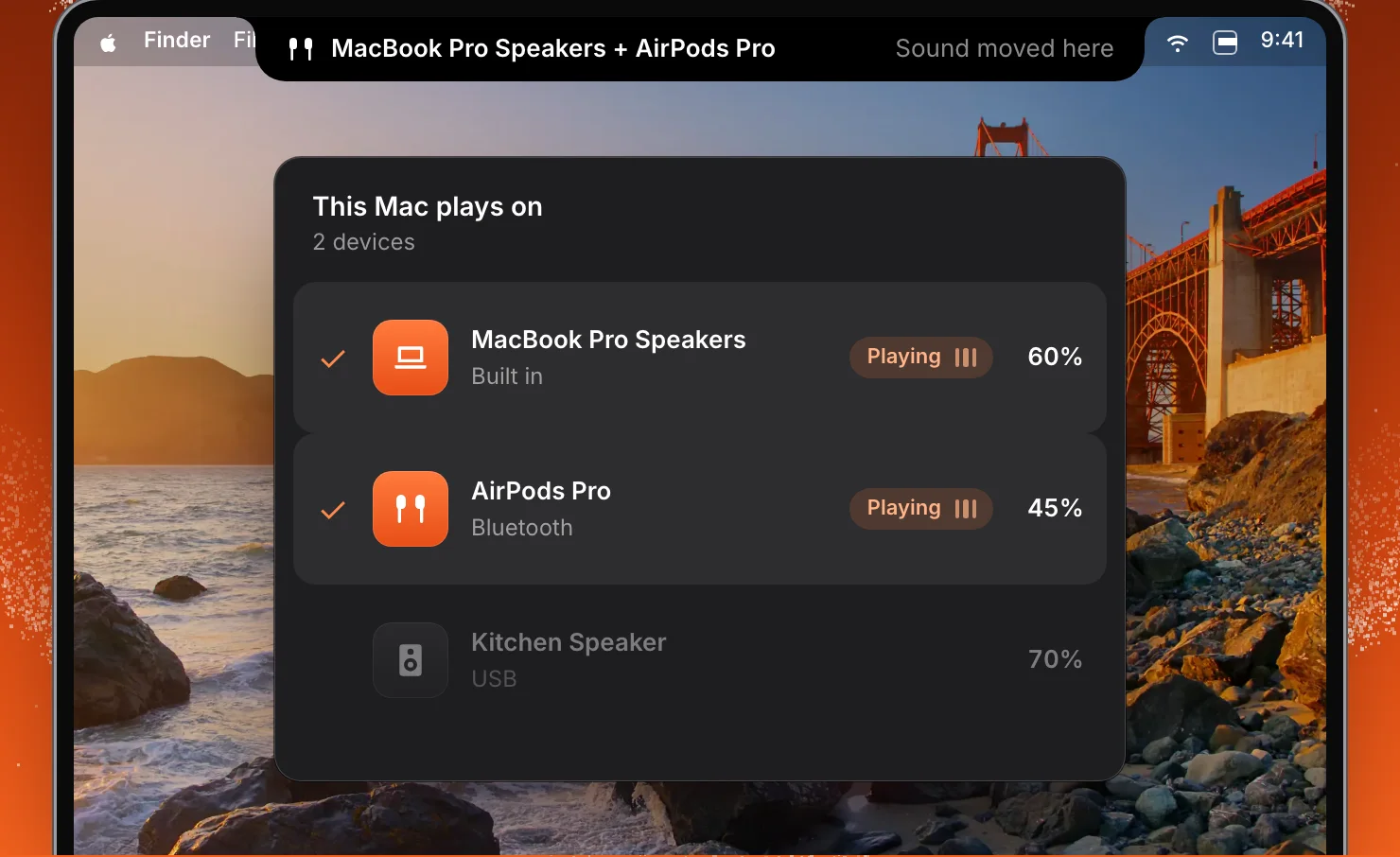
Tick the devices you want
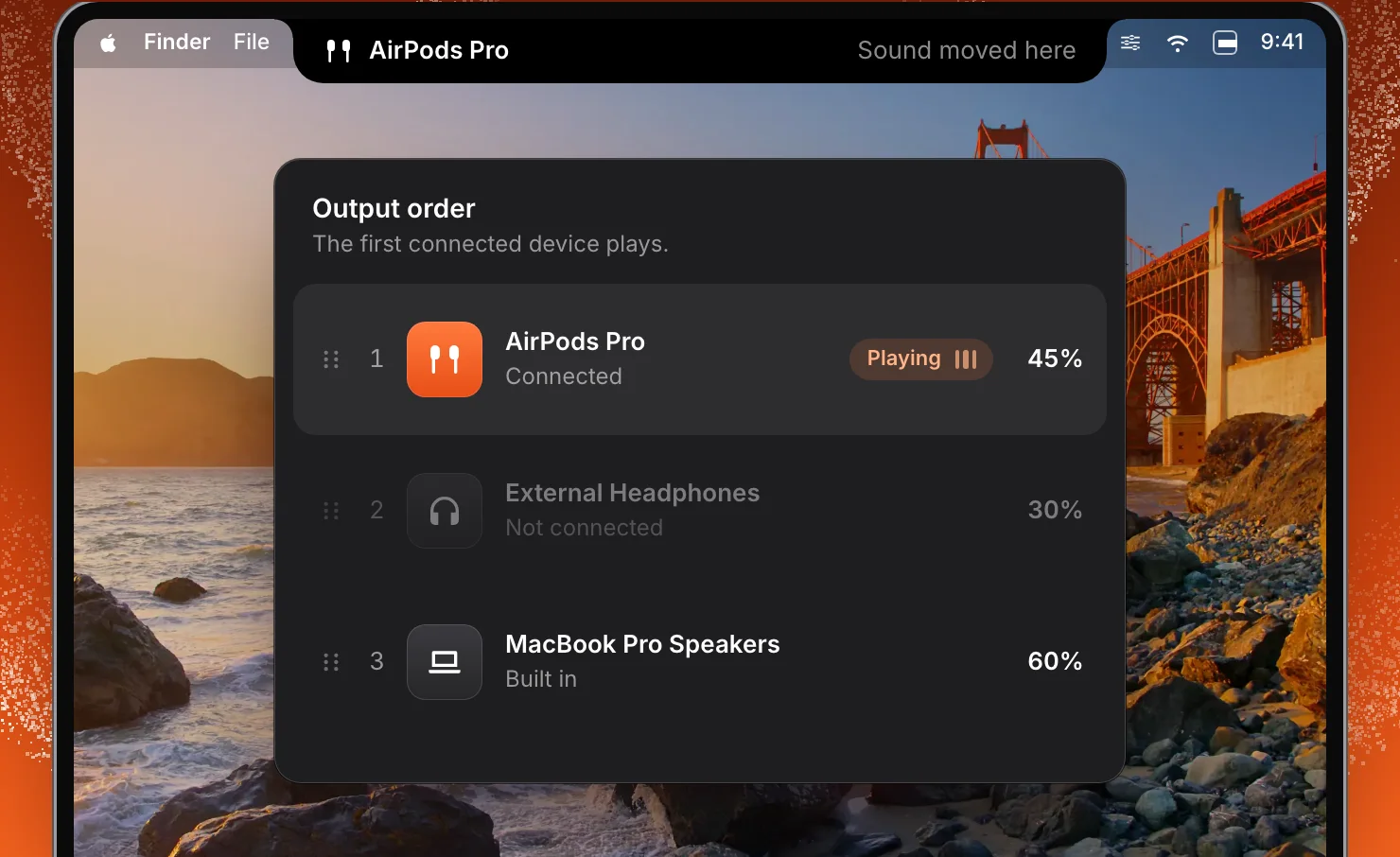
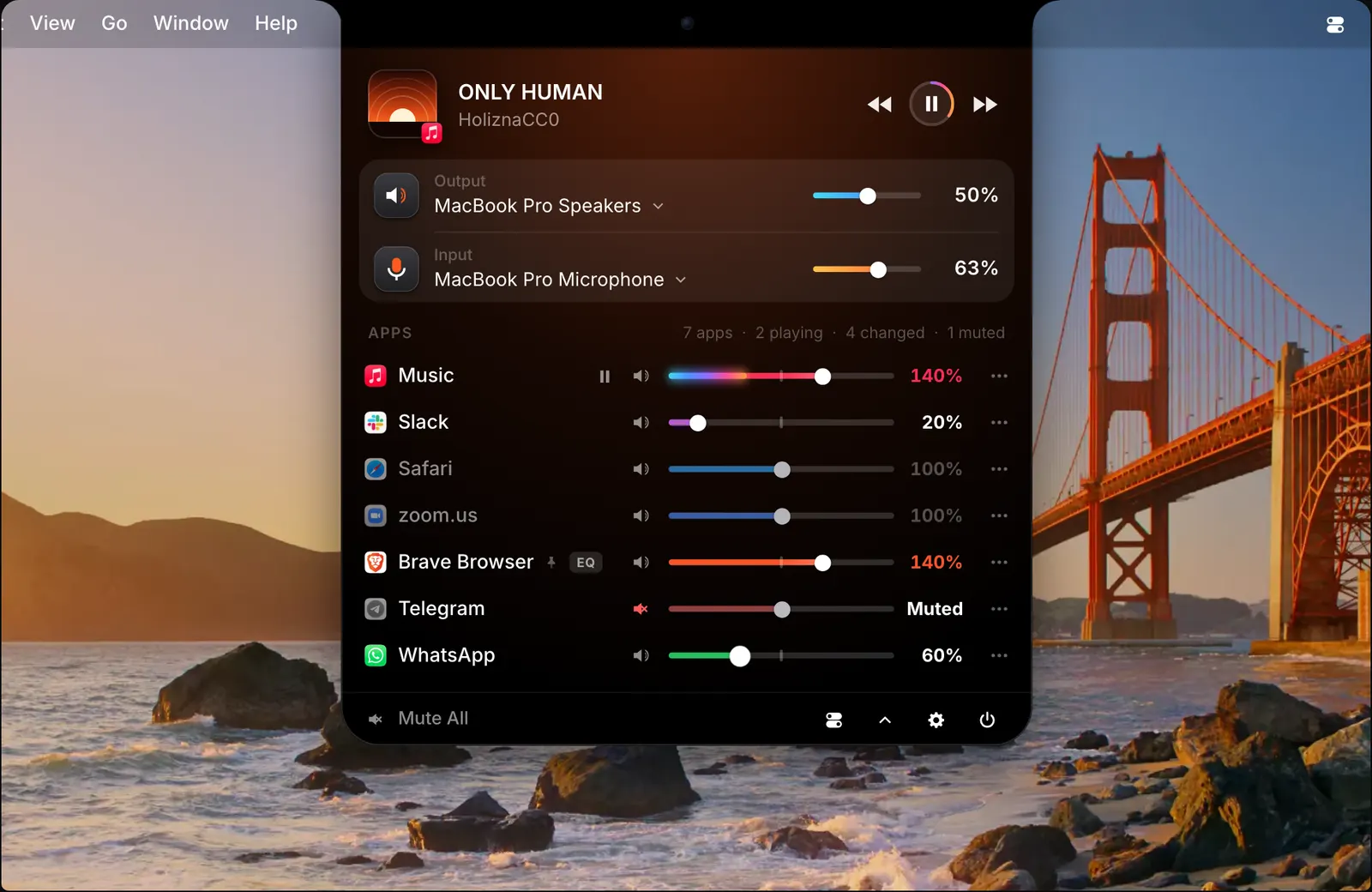
The Output menu at the top of the mixer is a list of ticks. Tick a second device and the whole Mac plays on both. Tick a third and it plays on three. Untick the others and you are back to one.
It works with the outputs your Mac lists, such as the built-in speakers, wired or Bluetooth headphones, a display’s speakers and a USB interface. The notch tells you where the sound has moved, as it does when you switch to a single device.
macOS can do this by itself with a Multi-Output Device, which you make in the Audio MIDI Setup app. That device has no volume of its own, so the volume keys do nothing while it is the output. SoundBar needs no setup in Audio MIDI Setup and gives you the volume back.
One volume for all, and one for each
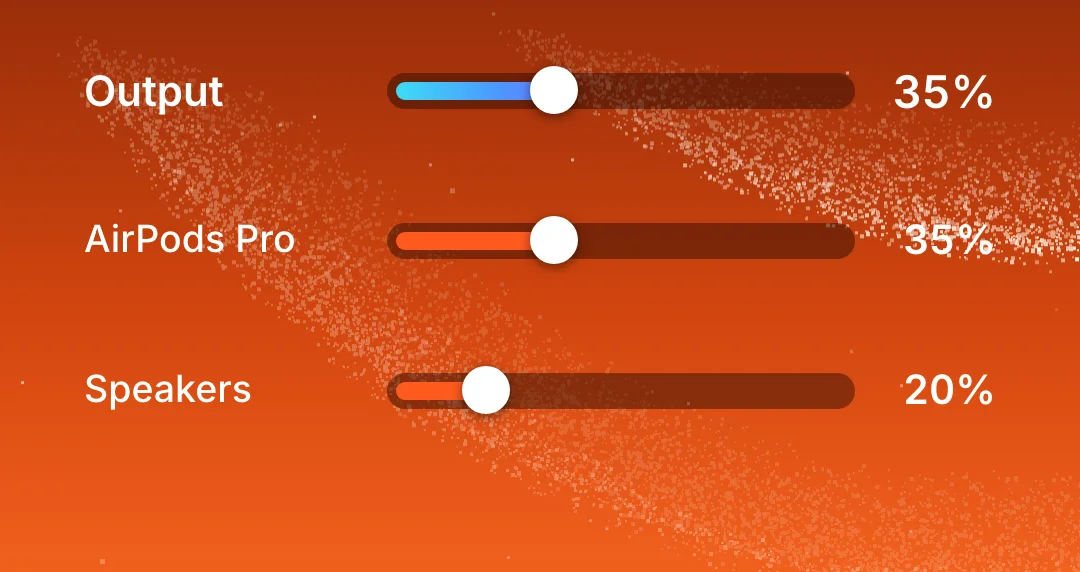
The Mac’s slider in SoundBar moves every ticked device together, and its mute button mutes them all. Each device keeps its place against the others, so one that was quieter stays quieter by the same amount.
A button on the Output row opens a slider for each device. Use it when the speakers should be lower than the headphones. It puts itself away a few seconds after you leave it.
The keyboard’s volume keys move the devices too, once SoundBar has taken the keys over. A line under the devices’ sliders offers to turn that on, and macOS then asks for Accessibility permission. Until then the keys have nothing to change, as with a Multi-Output Device.
A delay to stop the echo
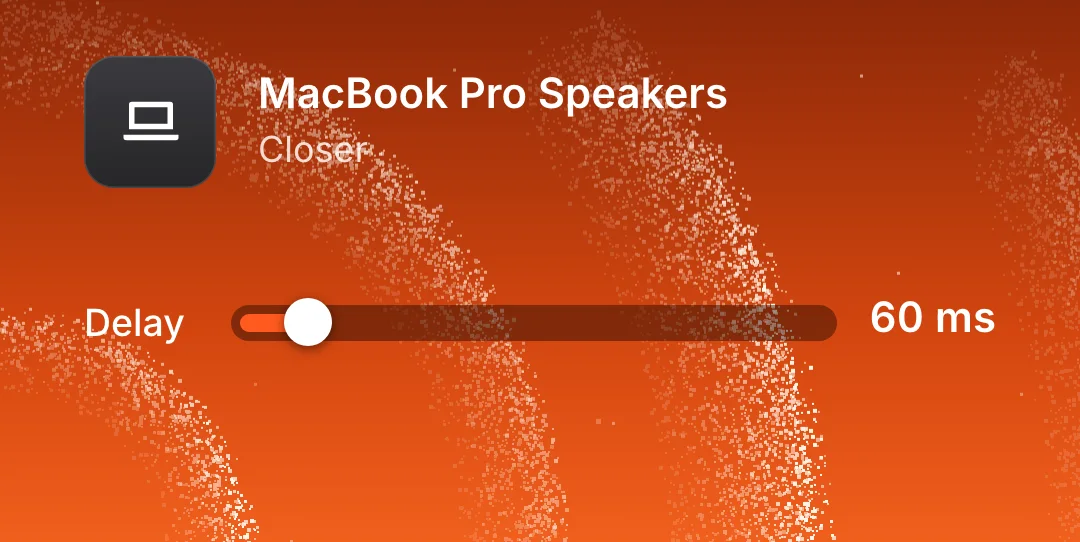
Devices take different times to play what they are given. Wired speakers are almost immediate and Bluetooth headphones are a little late, so the same sound can arrive twice.
Beside each device’s slider is a timer. It holds that device back by up to 500 milliseconds. Hold back the device that plays first until the echo is gone.
One app, or the whole Mac
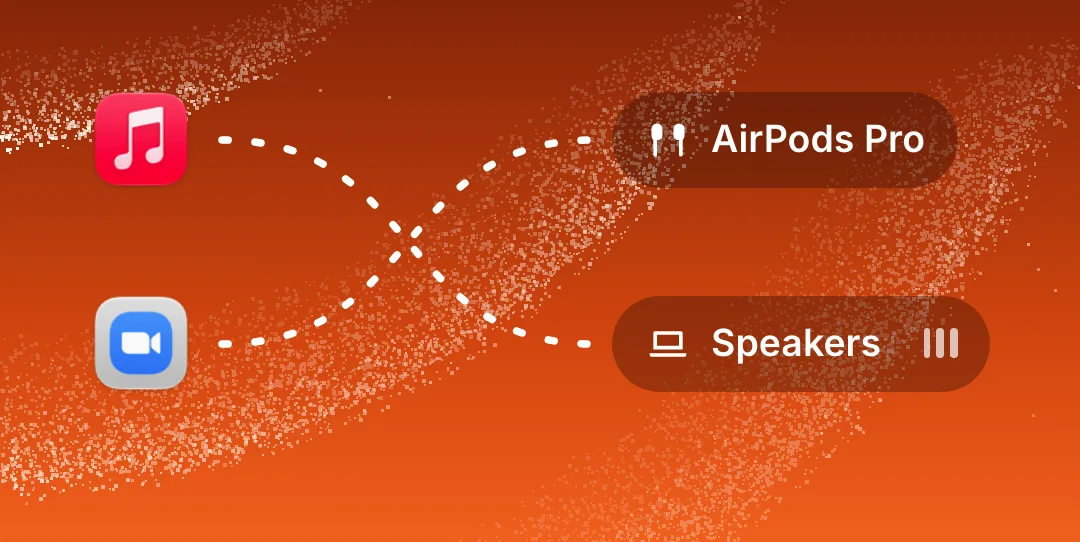
The ticks in the Output menu are for the whole Mac. Each app also has a Play Through menu with the same ticks. Tick two devices there and only that app plays on both.
An app with an output of its own keeps to it. If the Mac plays on the speakers and the headphones, and you have sent a call to the headphones alone, the call stays in the headphones.
When a device drops out
If one of the devices disconnects, for example headphones that run out of battery, the sound carries on with the others and the notch says which device went. When it is back, SoundBar plays on it again and says so.
How to use it
- 1
Open the mixer
Open SoundBar from the notch or the menu bar and click All.
- 2
Tick a second device
Open the Output menu at the top and tick each device you want to play on.
- 3
Set the levels
Use the Mac’s slider for all of them, or the button on the Output row for one.
- 4
Add a delay if you hear an echo
Click the timer beside the device that plays first and hold it back.
The details
- Plays on
- Two or more of the output devices your Mac lists
- Set for
- The whole Mac, or one app
- Volume
- One for all the devices, and one for each
- Delay
- 0 to 500 ms for each device
- Volume keys
- Once SoundBar takes them over, in Settings > Notch
- Needs
- SoundBar 1.0.7 or later
Questions
Can a Mac play sound on two devices at once?
Yes. In SoundBar, tick two or more devices in the Output menu and the Mac plays on all of them, for example headphones and speakers together.
Do I need to make a Multi-Output Device in Audio MIDI Setup?
No. SoundBar does this from its own menu. A Multi-Output Device made in Audio MIDI Setup also plays on several devices, but it has no volume of its own.
Do the volume keys work with several devices?
They do once SoundBar takes the keys over. Turn on Take over the keyboard’s volume keys in Settings > Notch, or use the line under the devices’ sliders, and allow Accessibility when macOS asks. The Mac’s slider in SoundBar works either way.
Can one app play on two devices while the rest play on one?
Yes. Tick the devices in that app’s Play Through menu. Every other app stays on the Mac’s output.
What if the two devices are out of step?
Hold back the one that plays first. Each device has a delay of up to 500 milliseconds, set with the timer beside its slider.
The same feature on the app's own site: soundbarmac.com/