Four things that can fall
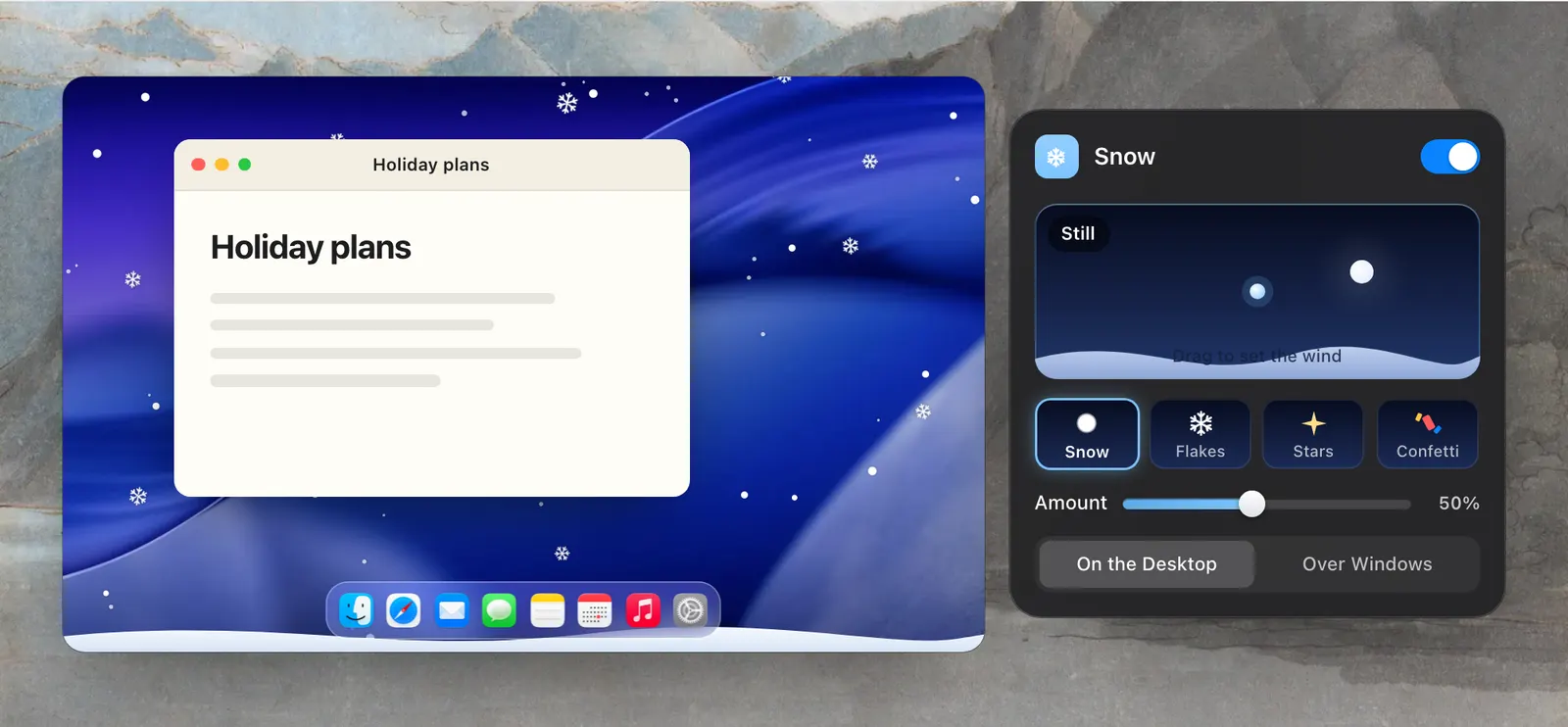
Click Snow’s name in the dropdown to open its page. Under the wind control are four kinds. Snow is soft dots with a snowflake here and there. Flakes is snowflakes only. Stars are gold and white. Confetti comes in five colours. Snow is what you get to start with.
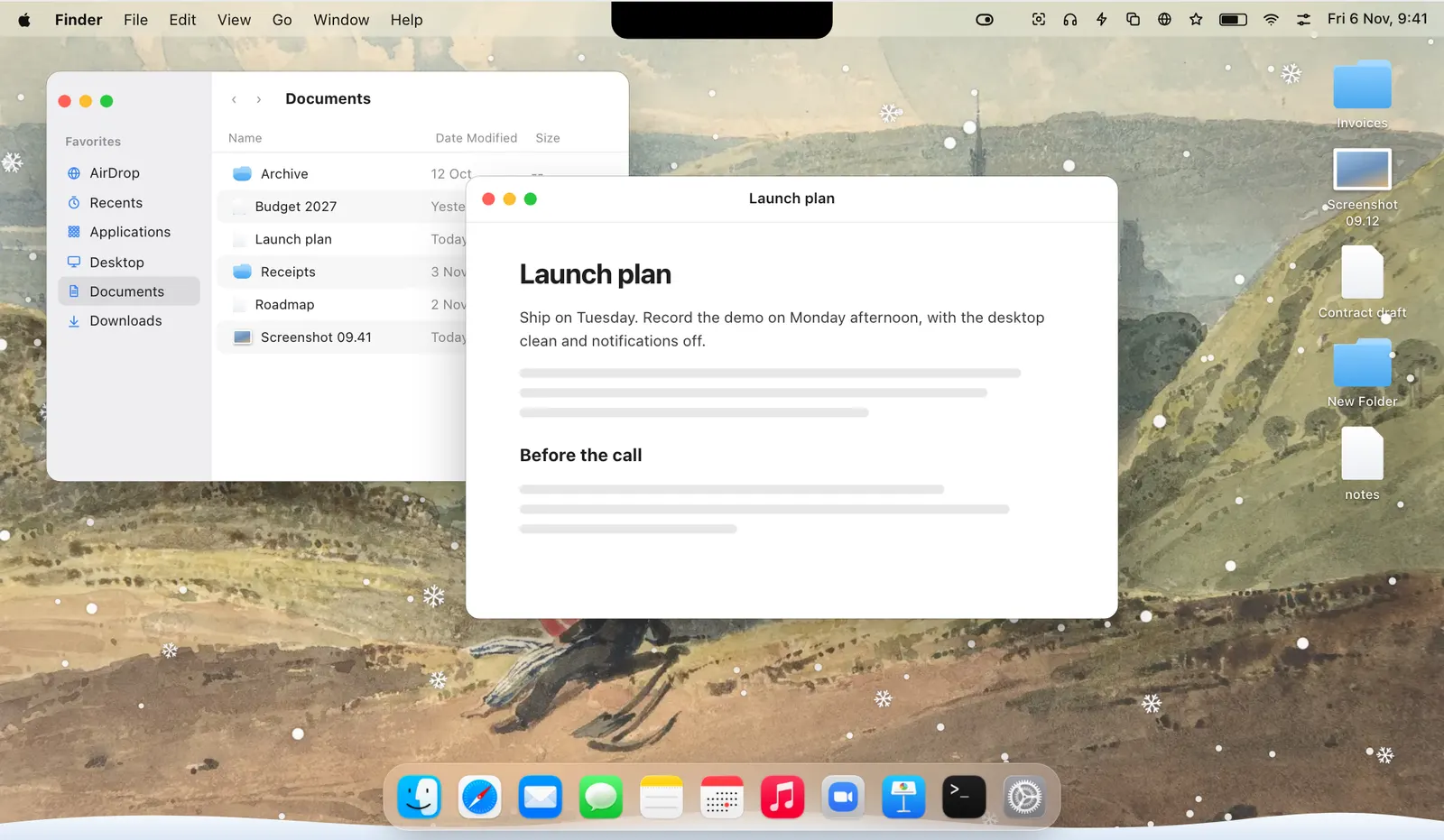
The Amount slider runs from 10% to 100%. Earlier versions had three amounts, Light Snow, Snow and Heavy Snow, which are now 20%, 50% and 80%. A last choice sets where it falls: On the Desktop, which is behind your windows, or Over Windows, in front of them. As it falls, a drift builds along the bottom of the screen.

Set the wind
The small night scene at the top of Snow’s page is the wind control. Drag across it and the snow slants that way. Drag up and it falls more slowly. Drag down and it falls faster. Turn on Gusts and a gust comes through now and then. A label in the corner of the scene reads Still until you set a direction.
The desktop responds too. A quick swipe of the pointer across the screen blows the flakes aside.
Never in a share
Most snow apps are a screen saver, or they fall over everything, a client call included. Snow in Levers is kept out of screen shares and recordings, so the people on a call see your screen without it. It goes the moment the screen is shared or recorded, and comes back when you stop.
It is also built to stay light. It eases off when the Mac is on battery and pauses behind full-screen apps. Pointer Spotlight is the opposite case: it is made for viewers, so it does show in a share.
Off after the holidays
Snow turns itself off once the holidays are over, on 7 January. That is on by default. If you want to keep it longer, switch off the setting that ends it.
It is a switch like any other, on the Screen tab, so it can have a hotkey and a rule can control it. One of the examples on the Levers site is a rule that turns Snow off when the battery is below 20%.
Snow arrived in Levers 1.4. Version 1.7 added the wind control, Flakes, Stars and Confetti, and the Amount slider.
How to use it
- 1
Turn on Snow
Click Snow in the dropdown, on the Screen tab.
- 2
Pick the kind and the amount
Click its name to open Snow’s page.
- 3
Set the wind
Drag across the scene at the top of the page.
The details
- Kinds
- Snow, Flakes, Stars, Confetti
- Amount
- 10% to 100%
- Where
- On the Desktop (behind windows) or Over Windows
- Wind
- Drag for direction and speed, with optional Gusts
- In shares and recordings
- Never shown
- On battery
- Lighter, and paused behind full-screen apps
- Ends
- By itself on 7 January, unless you turn that off
Questions
Can people on a call see the snow?
No. It doesn’t show in a screen share or a recording.
Does Snow slow my Mac down?
It is light by design. It eases off on battery and pauses behind full-screen apps.
Can I keep it after the holidays?
Yes. Turn off the setting that ends it after the holidays.
Can it fall in front of my windows?
Yes. Choose Over Windows. On the Desktop keeps it behind them.
The same feature on the app's own site: leversmac.com/features/snow