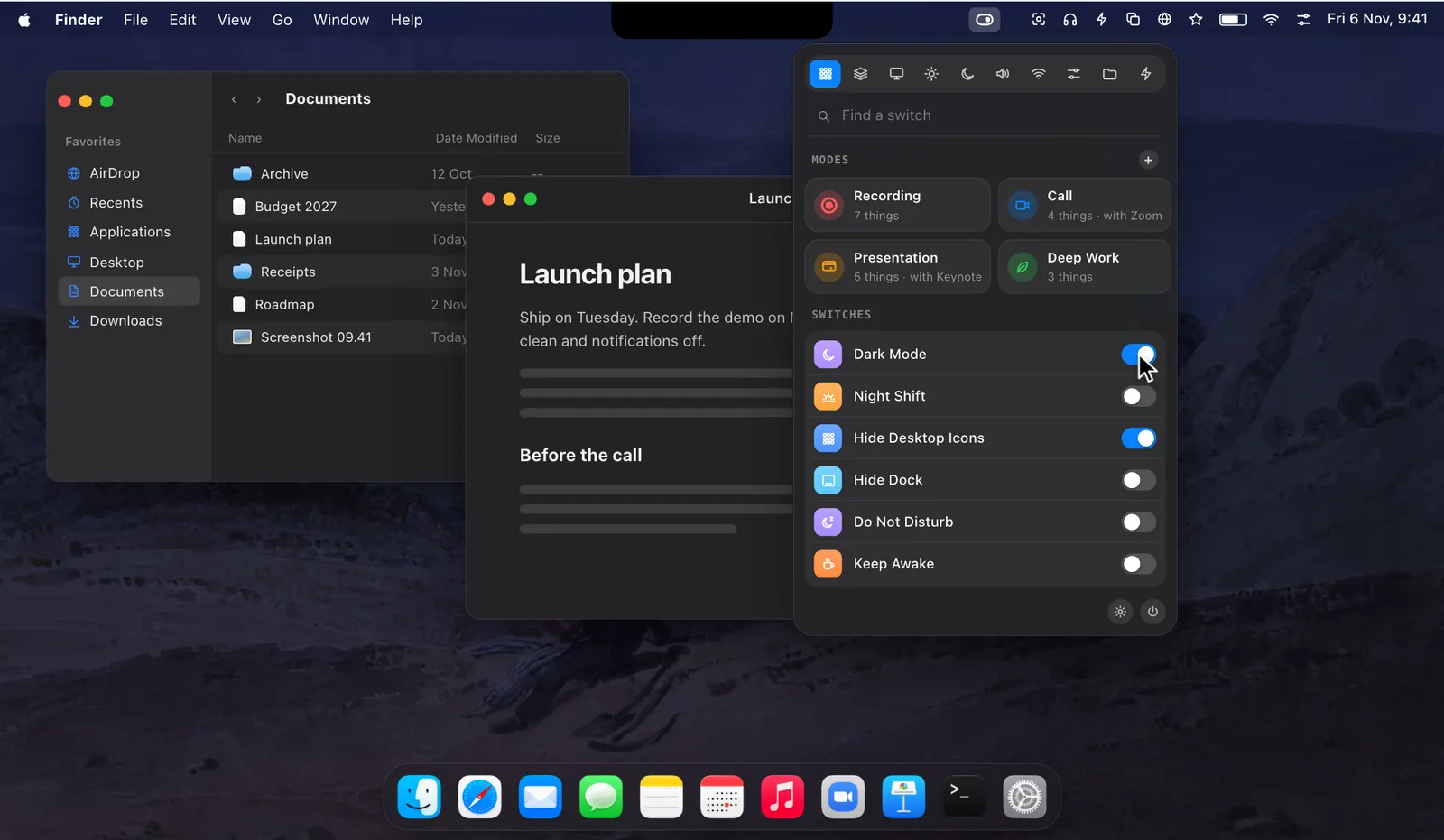
One dropdown, a tab for each group
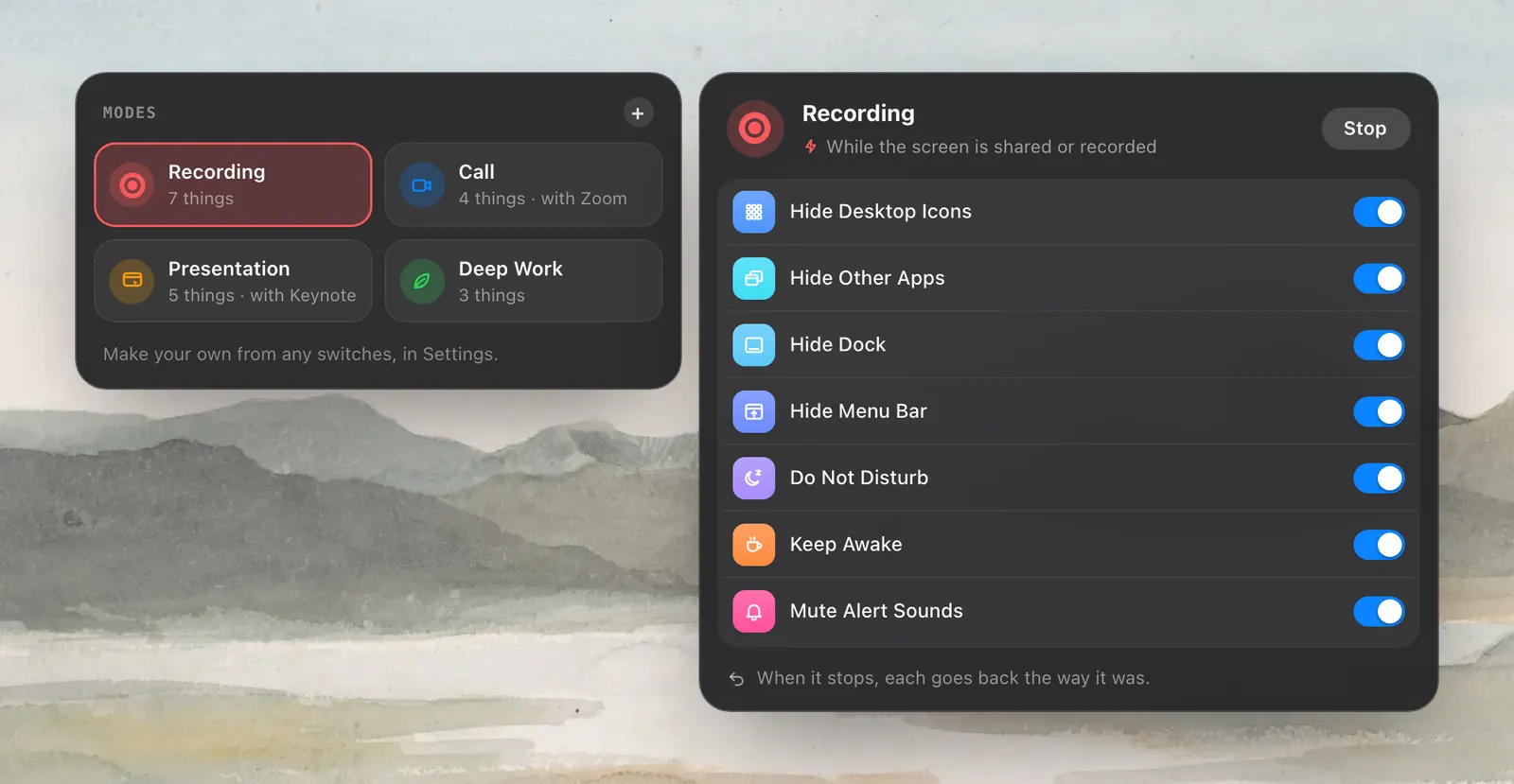
The dropdown opens on the Overview, which holds your modes and the switches you use most. The rest are sorted into tabs: Screen, Display, Focus & Power, Sound, Connections, System, Finder and Actions.
A switch turns something on or off and shows its state. An action runs once: Empty Trash, Lock Screen, Flush DNS Cache. Click a switch’s name, not its toggle, to open its options, such as how long Keep Awake should last.
You decide what the dropdown shows. In Settings › Switches each switch sits on one of three shelves: On the Overview, In its tab, or Hidden. Drag a switch between them, or right-click it. The order is yours to set as well, or Levers can put the ones you use most first.

Settings macOS keeps out of reach
Many of the switches replace a Terminal command or a setting several panes deep. Some examples from the System tab:
- Remap Caps Lock: Caps Lock becomes Escape, or a Hyper key (⌃⌥⇧⌘ together)
- Fast Key Repeat: keys repeat sooner and faster than System Settings allows
- Ask Before Quit: ⌘Q does nothing unless you hold it for a second
- Quit on Last Window: an app quits when you close its last window
- Hide Apps You Leave: each app hides as you switch away from it
- Default Browser: change which browser opens links

A hotkey for any switch
Settings › Shortcuts gives any switch or mode a hotkey. Levers registers them with macOS, so they work in every app, even over a full-screen one, and they need no extra permission. Recording Mode comes with ⌃⌥⌘R already set.
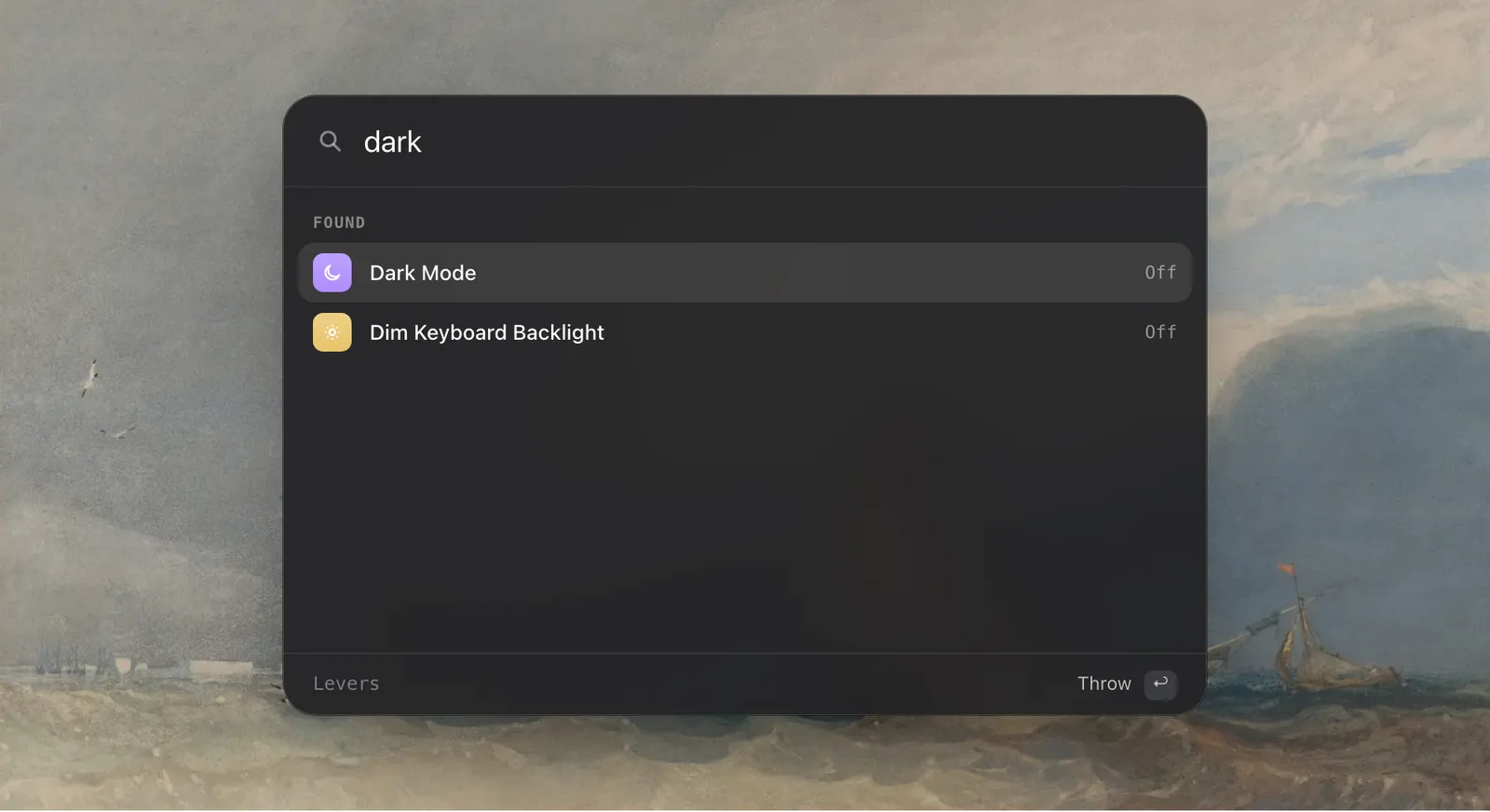
Every switch and mode is also an action in the Shortcuts app, and each switch has a link, such as levers://dark-mode/toggle, that Raycast, Alfred, a Stream Deck or a script can open.

Actions that run once
The Actions tab holds the jobs with no on or off. Clear Clipboard empties what you copied. Paste as Plain Text strips the formatting off what you copied and pastes it into the app in front (without Accessibility it only strips, and you paste). Quit Other Apps closes everything except the app in front and the ones you keep, after asking. Sleep Displays turns the screens off while your apps keep running.

Permissions, one at a time
Levers asks for a permission only when you first use a switch that needs it. Say no, and only that switch stops working.
- Accessibility: hiding chosen menu bar icons, Lock Keyboard, Cleaning Mode, Ask Before Quit
- Control of System Events: the Dock and Dark Mode
- Finder: emptying the Trash
- Bluetooth: AirPods
- Full Disk Access: Reduce Motion
- Do Not Disturb works through two shortcuts you add once, because macOS gives apps no other way to set a Focus
How to use it
- 1
Click the asterisk
It is Levers’ icon in the menu bar, and it opens the dropdown.
- 2
Click a switch
It turns on or off. Click its name to see its options.
- 3
Arrange the dropdown
In Settings › Switches, put each switch On the Overview, In its tab, or Hidden.
- 4
Add hotkeys
In Settings › Shortcuts, give the switches you use most a hotkey.
The details
- Screen
- Hide Desktop Icons, Backdrop, Hide Other Apps, Hide Dock, Hide Menu Bar, Pointer Spotlight, Pause Hot Corners, Hide Idle Pointer, Stage Manager, Dock Position, Dock Magnification, Clock Seconds, 24‑Hour Clock, Hide the Notch, Snow
- Display
- Dark Mode, Night Shift, True Tone, Grayscale, Reduce Transparency, Increase Contrast, Reduce Motion
- Focus & Power
- Do Not Disturb, Keep Awake, Lock Keyboard, Low Power Mode, Cleaning Mode
- Sound
- Mute Alert Sounds, Mute Microphone
- Connections
- AirPods, Wi‑Fi, Bluetooth
- System
- Standard Function Keys, Default Browser, Hide Apps You Leave, Ask Before Quit, Quit on Last Window, Remap Caps Lock, Fast Key Repeat, Dim Keyboard Backlight, Reopen Windows at Login, Shake to Find Pointer
- Finder
- Show Hidden Files, Show File Extensions, Path Bar, Status Bar, Folders First, Ask Before Emptying Trash
- Actions
- Screen Saver, Clear Clipboard, Empty Trash, Eject All Disks, Sleep Displays, Lock Screen, Quit Other Apps, Restart Finder, Restart Dock, Flush DNS Cache, Paste as Plain Text, Run a Shortcut, Copy Window Title, Sort Desktop
- Links
- levers://dark-mode/toggle and the like
Questions
Can I hide the switches I don’t use?
Yes. In Settings › Switches each switch goes on a shelf: On the Overview, In its tab, or Hidden.
Do the switches need permissions?
Only some, and each is asked for the first time you use that switch, such as Accessibility for Lock Keyboard.
Can I add a switch of my own?
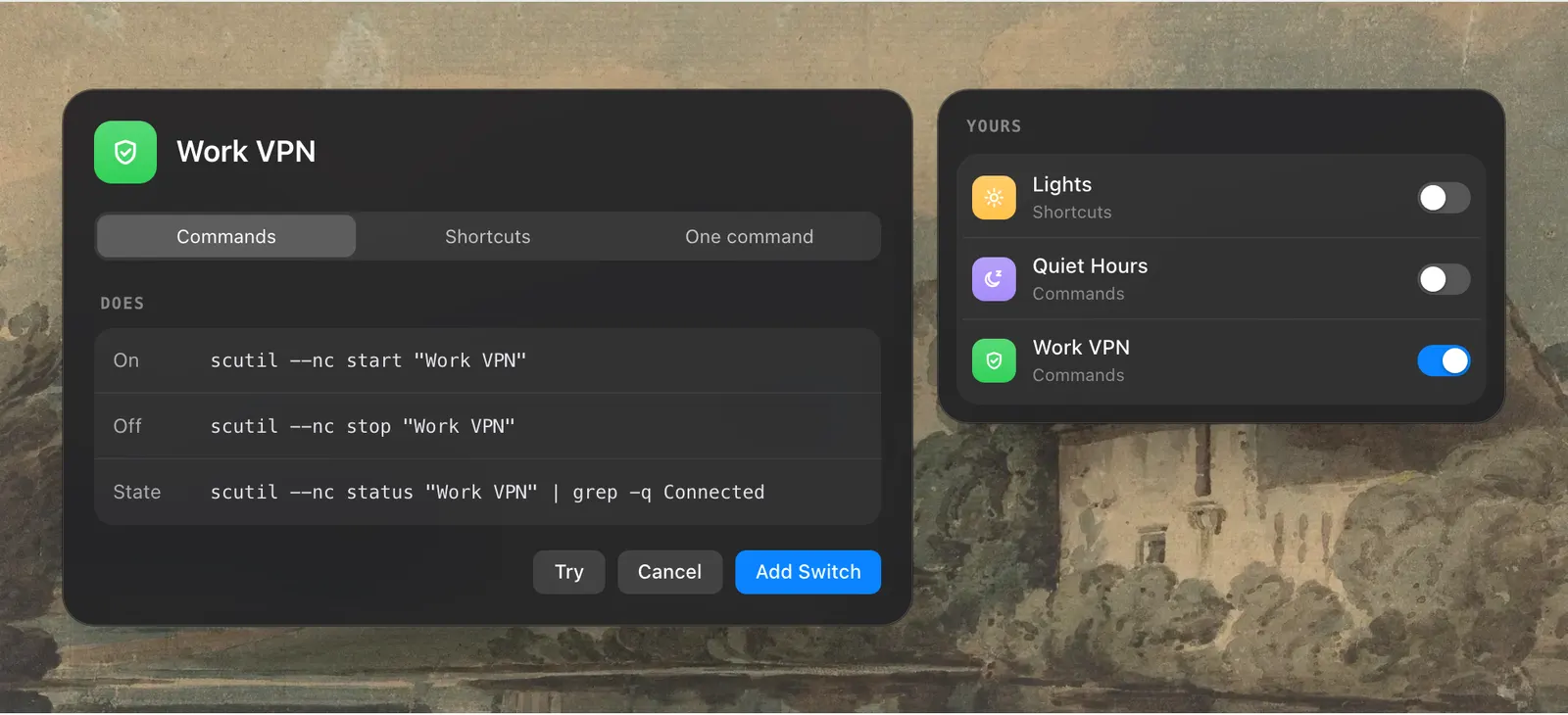
Yes. In Settings › Switches you can make a switch from shell commands or from shortcuts in the Shortcuts app.
Can I trigger a switch from Raycast, Alfred or a script?
Yes. Each switch has a levers:// link, such as levers://dark-mode/toggle, and is an action in the Shortcuts app.
Does the order of the switches change by itself?
Only if you want it to. Set the order yourself, or let the ones you use most come first.
The same feature on the app's own site: leversmac.com/features/switches