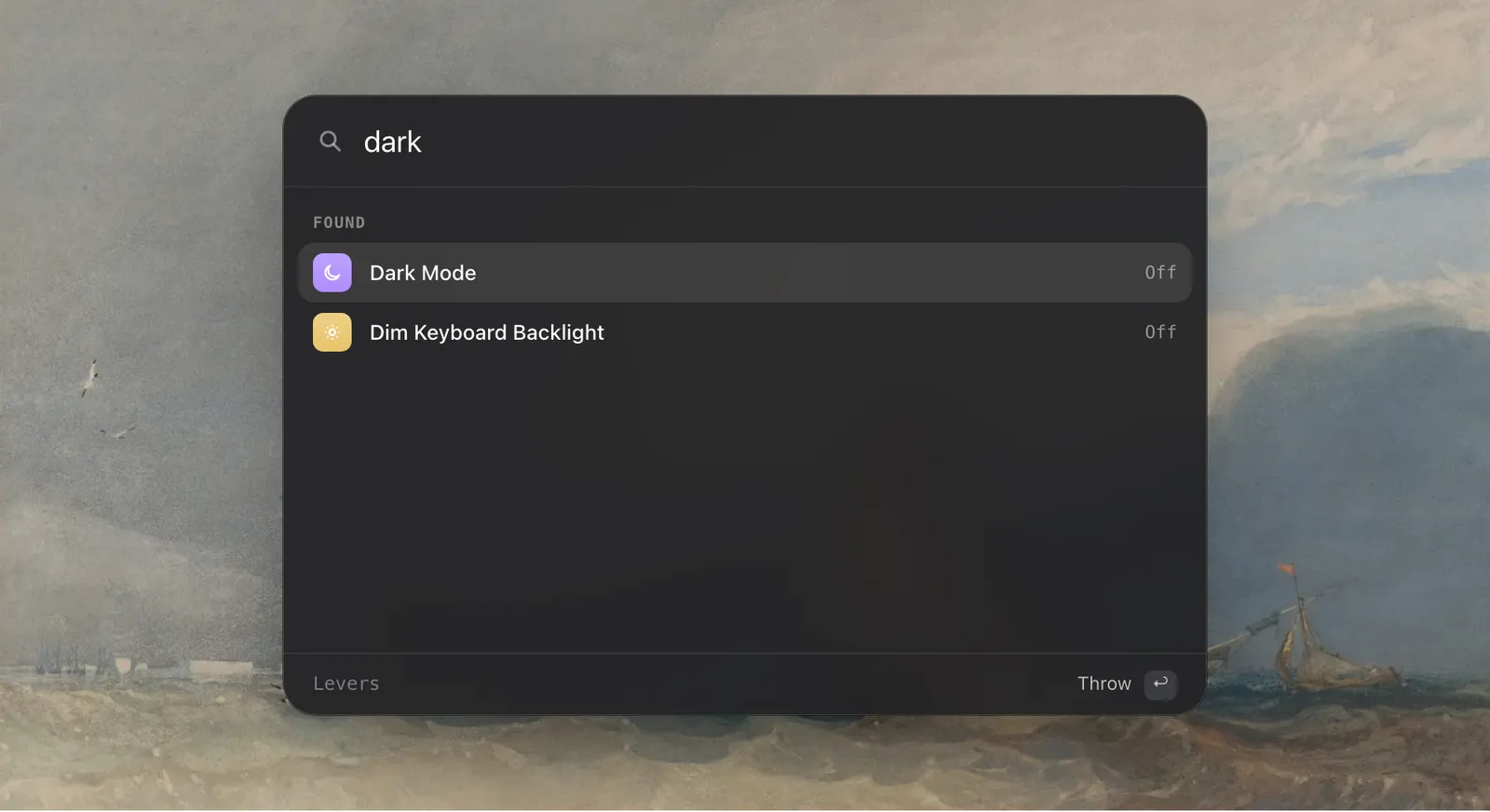
Find a switch by name, nickname or initials
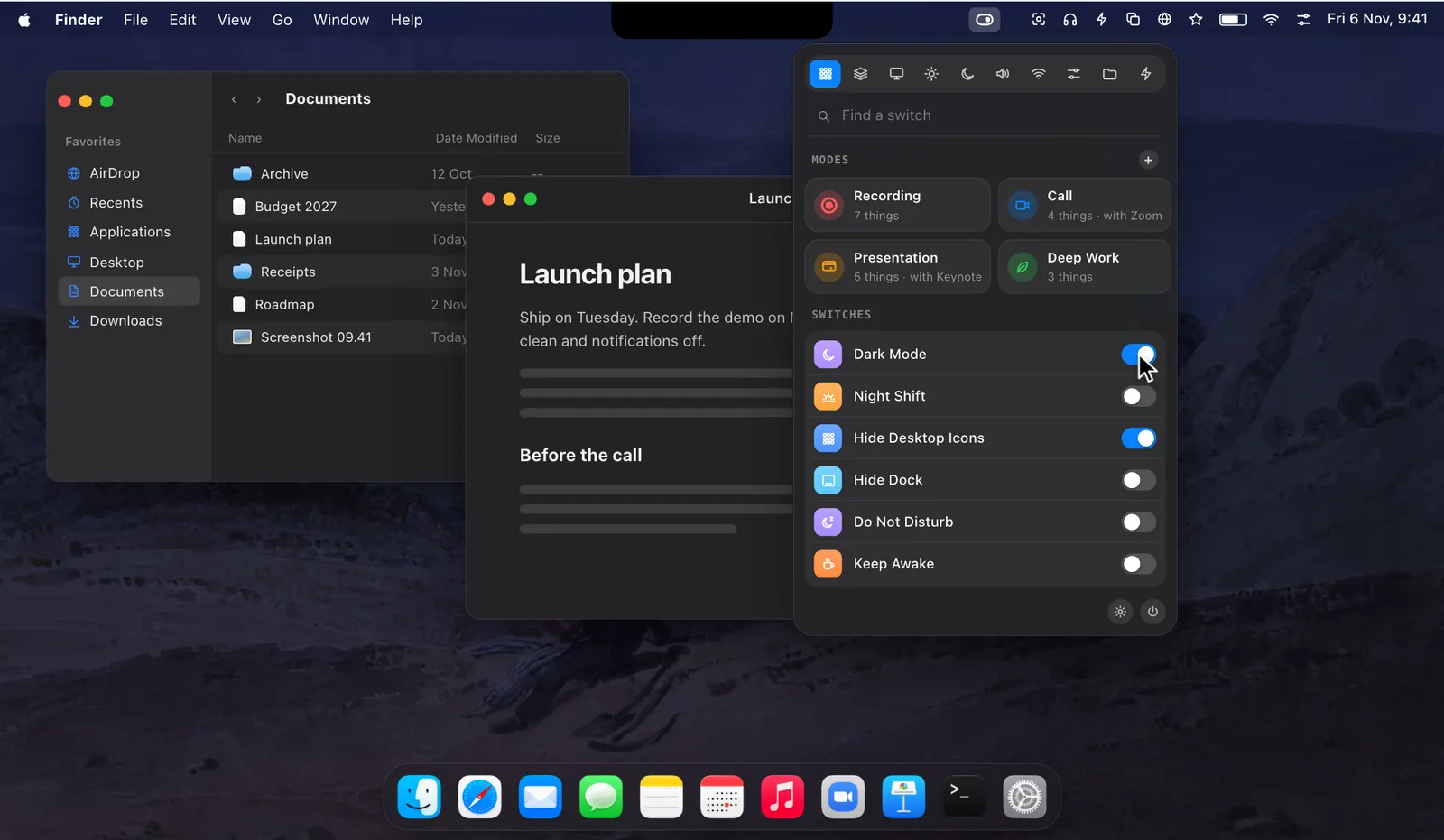
The palette searches every switch, action and mode in Levers. It matches the name, the other words people use for the same thing, and initials: “dark” finds Dark Mode, and “hdi” finds Hide Desktop Icons. The ones you use most come first.
Return acts on the selected row: a switch flips, an action runs, a mode starts. Each row shows the current state on the right, so you can see that Dark Mode is off before you turn it on. ⌘↩ opens a switch’s options.
Before you type anything, the palette lists your modes and a couple of switches, with the first mode selected, so starting Recording Mode can be as short as ⌃⌥Space and Return. The footer names what Return will do with the selected row: Throw for a switch or a mode, Copy for a sum or an emoji.
Open a menu bar icon, even a hidden one
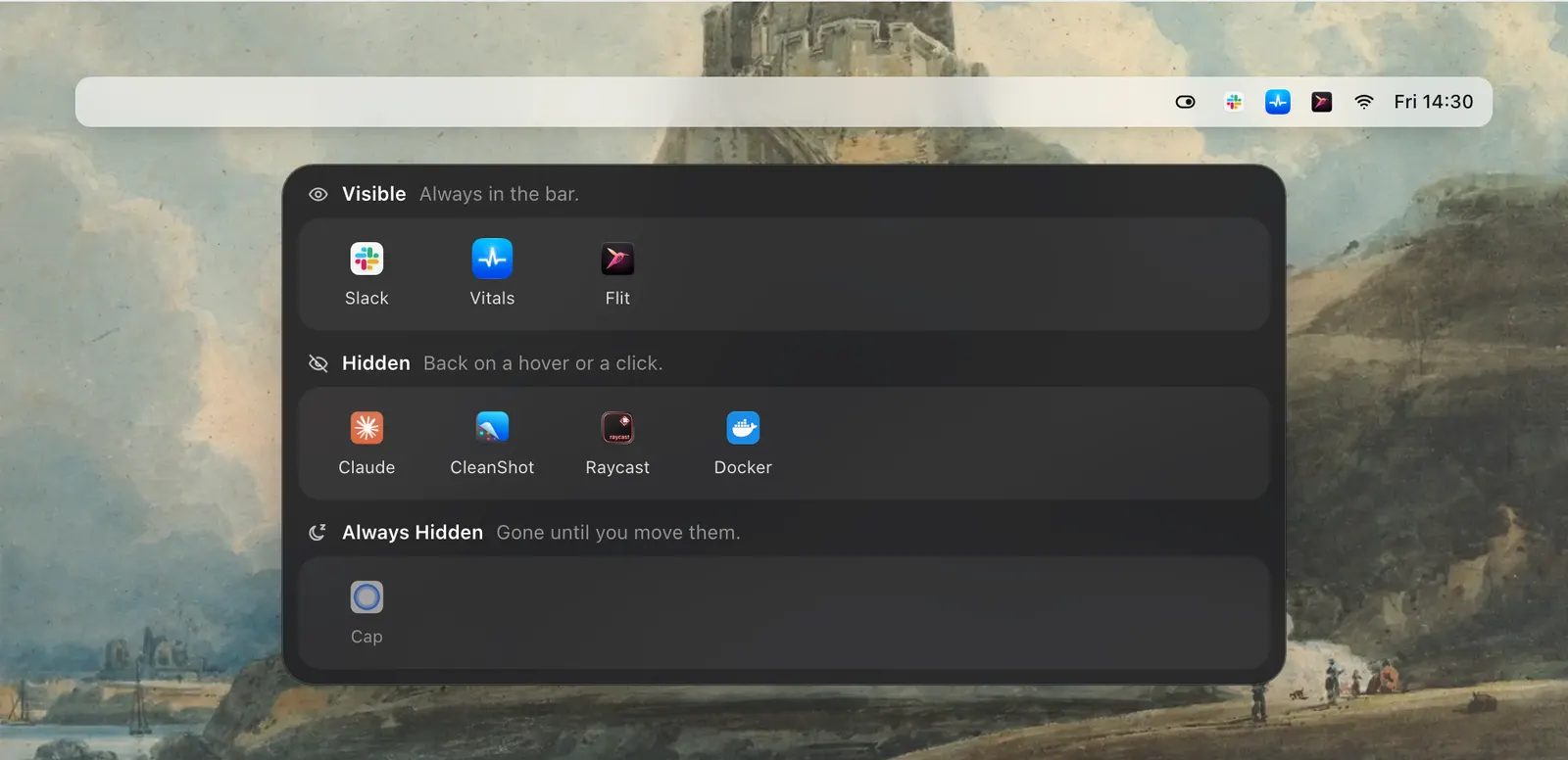
On macOS 27 the palette also lists the icons in your menu bar, including the hidden ones. Type an app’s name and press Return, and its menu opens as though you had clicked the icon.
If the icon was hidden, Levers brings it out first and puts it away again when the menu closes. An app with several icons gets a row for each. This part needs Accessibility, so that Levers can see the bar. It arrived in Levers 1.8.

Sums, emoji and your shortcuts
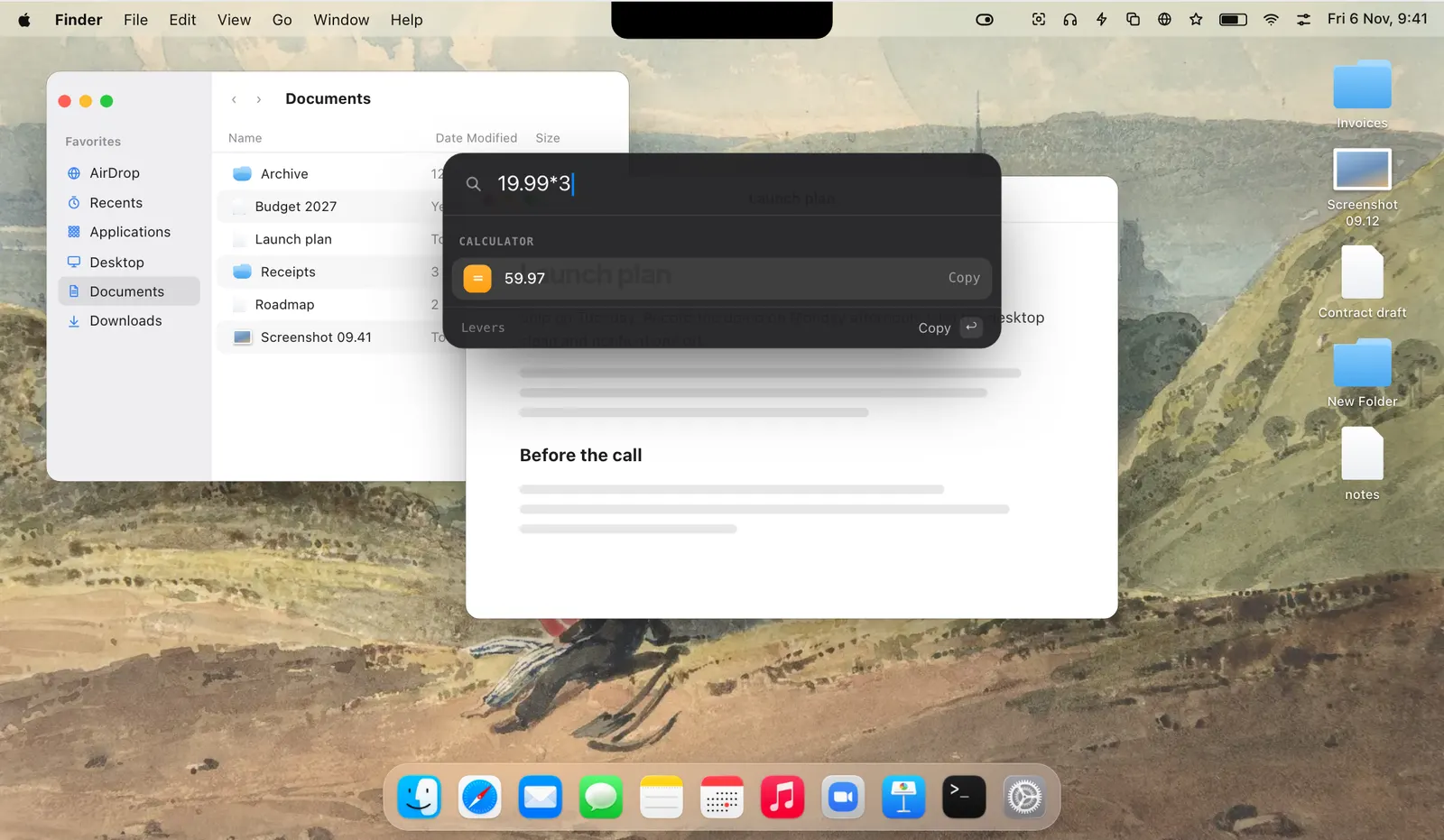
Type a sum such as 12*7 and the answer is the first row. Return copies it. Type a word to search emoji by name: Return copies the one you pick, and ⌘↩ pastes it.
The shortcuts you have in the Shortcuts app are listed too. Return runs one, and ⌘↩ opens it in Shortcuts.
Next to Spotlight, Raycast and Alfred
Mac settings live in many places: System Settings, Control Center, the menu bar, Terminal. Reaching one with the mouse means knowing where it is and clicking your way there.
Spotlight opens apps and settings panes, but it doesn’t turn a setting on, start a set of them, or open another app’s menu bar icon. The palette is for those three jobs, and it works from any app.
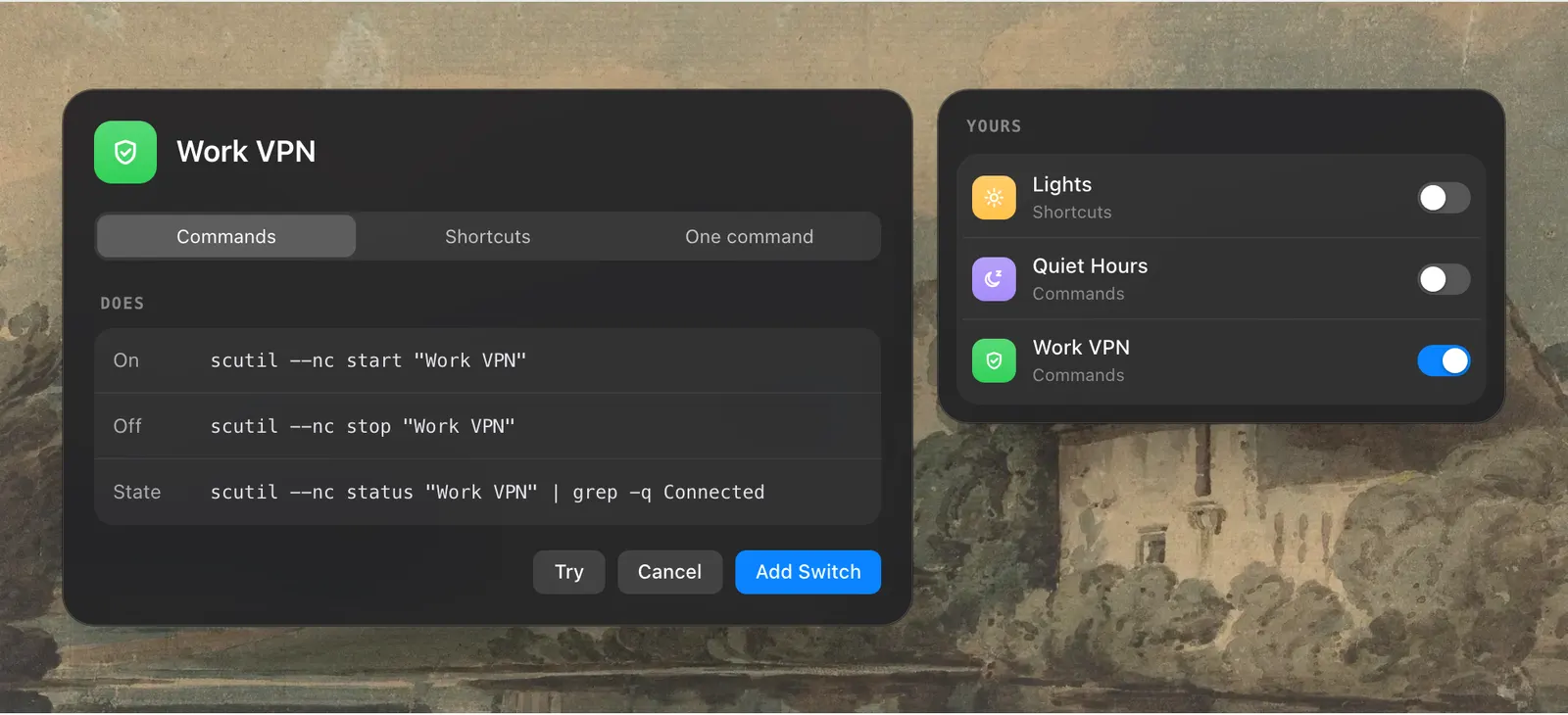
It has its own hotkey, ⌃⌥Space, which neither Raycast nor Alfred uses by default, so it runs alongside them. If the keys clash with something else, change them in Settings › Shortcuts. Switches you have made yourself are in the palette as well, by the names you gave them.
How to use it
- 1
Press ⌃⌥Space
In any app. The palette opens over what you are doing.
- 2
Type a few letters
A switch, a mode, an app’s name, a sum or a word for an emoji.
- 3
Press Return
The switch flips, the mode starts, the icon’s menu opens, the answer is copied or the shortcut runs.
The details
- Hotkey
- ⌃⌥Space. Change it in Settings › Shortcuts
- Finds
- Switches, actions, modes, menu bar icons, shortcuts, sums, emoji
- Matches
- Names, other words for the same thing, initials
- Return
- Flips, starts, opens, runs or copies
- ⌘↩
- A switch’s options, pastes an emoji, or opens a shortcut in Shortcuts
- Menu bar icons
- macOS 27 and Accessibility
Questions
Does the palette clash with Raycast or Alfred?
No. It has its own hotkey, ⌃⌥Space, which neither uses by default, and you can change it in Settings › Shortcuts.
Why doesn’t the palette list my menu bar icons?
That part needs macOS 27 and the Accessibility permission, so Levers can see the bar.
Can it open an icon that is hidden?
Yes. It brings the icon out, opens its menu, and hides it again when the menu closes.
Can I do calculations in it?
Yes. Type a sum such as 12*7. The answer is the first row, and Return copies it.
The same feature on the app's own site: leversmac.com/features/palette