The notch blends into the bar
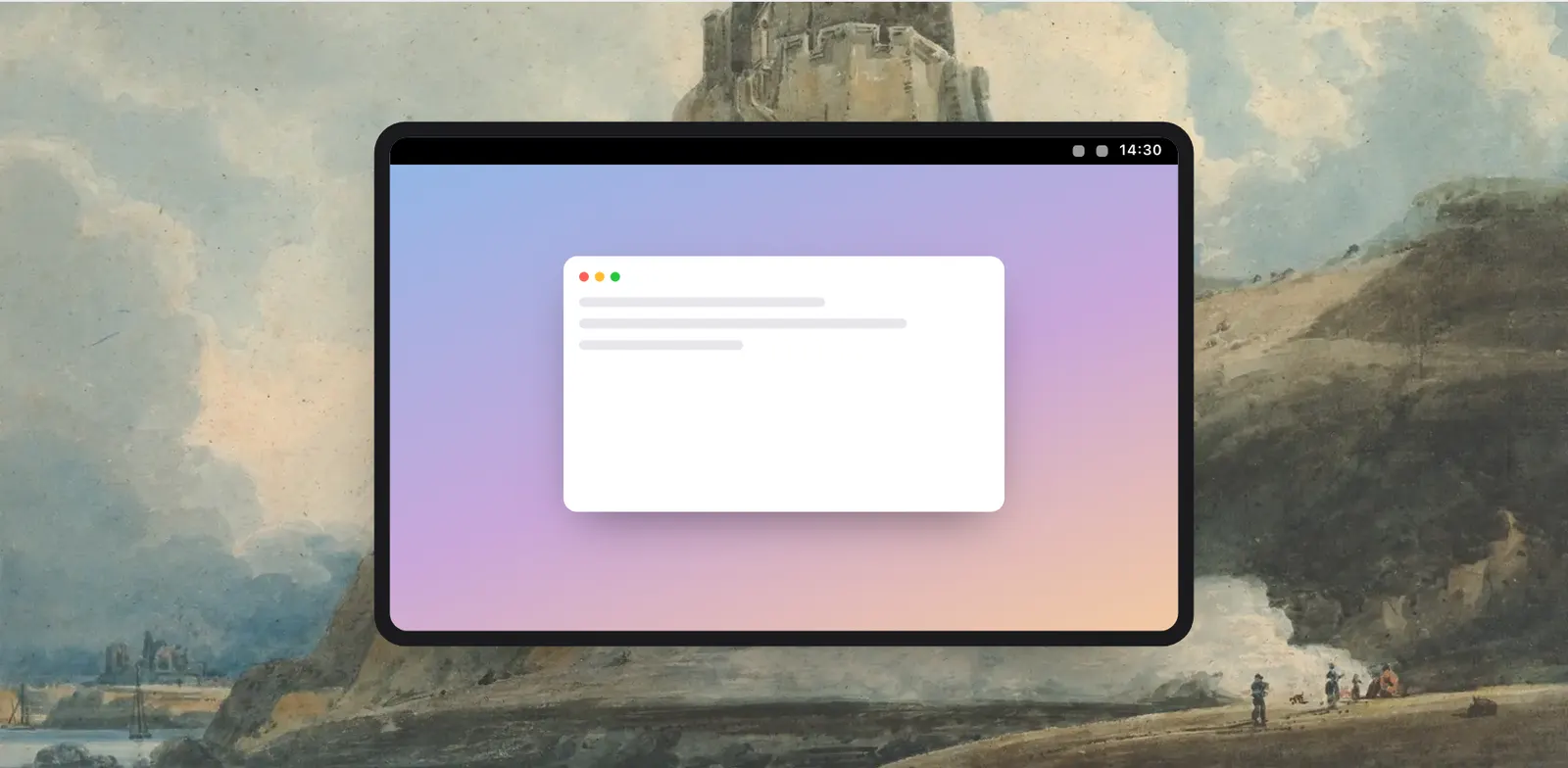
The notch sits in the middle of the menu bar. On a light wallpaper it stands out as a black shape cut into the top of the screen. macOS has no switch for this, and the usual workaround is to edit the wallpaper by hand.
Hide the Notch turns the strip behind the menu bar the same black as the notch. Only that strip changes, and the rest of your picture stays. It does this on each screen that has a notch.
Your wallpaper is kept
Levers doesn’t edit your picture. It paints a copy with a black top and sets the copy as the wallpaper. Your own file is not changed. When you turn the switch off, your picture is set as the wallpaper again, as it was.
You could paint the top of a wallpaper black yourself. That means editing the picture, keeping a copy of the original, and setting the old one again when you want it back, and it works only until the next time you change the wallpaper. The switch does the painting for you and undoes it for you.

Where it works
The switch is for a picture set as the wallpaper. It doesn’t work with a dynamic wallpaper or a video one.
It also appears only on a Mac that has a notch. If you don’t see Hide the Notch on the Screen tab of the dropdown, that is why.
- A picture as the wallpaper: yes
- A dynamic or video wallpaper: no
- A Mac without a notch: the switch isn’t shown
A switch like the others
Hide the Notch is on and off in one click, and like every switch in Levers it can have a hotkey in Settings › Shortcuts, turns up in the palette when you type “notch”, and can be a step in a mode. Recording Mode’s list is open to it as well, if you want a plain bar while you record.
It pairs well with two other parts of Levers. The menu bar shelves put away icons you don’t need, and Spacing in Settings › Menu Bar sets the remaining icons closer together, so more of them fit beside the notch.
How to use it
- 1
Turn on Hide the Notch
Click it in the dropdown, on the Screen tab.
- 2
Turn it off
Your own wallpaper comes back.
The details
- What turns black
- Only the strip of wallpaper behind the menu bar
- Your picture
- A copy is painted. Your file is not changed
- Works with
- A picture as the wallpaper, not a dynamic or video one
- Screens
- Each one with a notch
- Shown on
- Macs with a notch only
- Where it is
- The Screen tab of the dropdown
Questions
Does Hide the Notch change my wallpaper file?
No. Levers paints a copy and puts your own picture back when the switch is off.
Does it work with dynamic wallpapers?
No. It works with a picture as the wallpaper, not a dynamic one or a video.
Why can’t I find the switch?
It is shown only on a Mac with a notch.
Does the whole wallpaper go black?
No. Only the strip behind the menu bar does. The rest of your picture stays.
The same feature on the app's own site: leversmac.com/features/hide-notch