One app, and nothing behind it
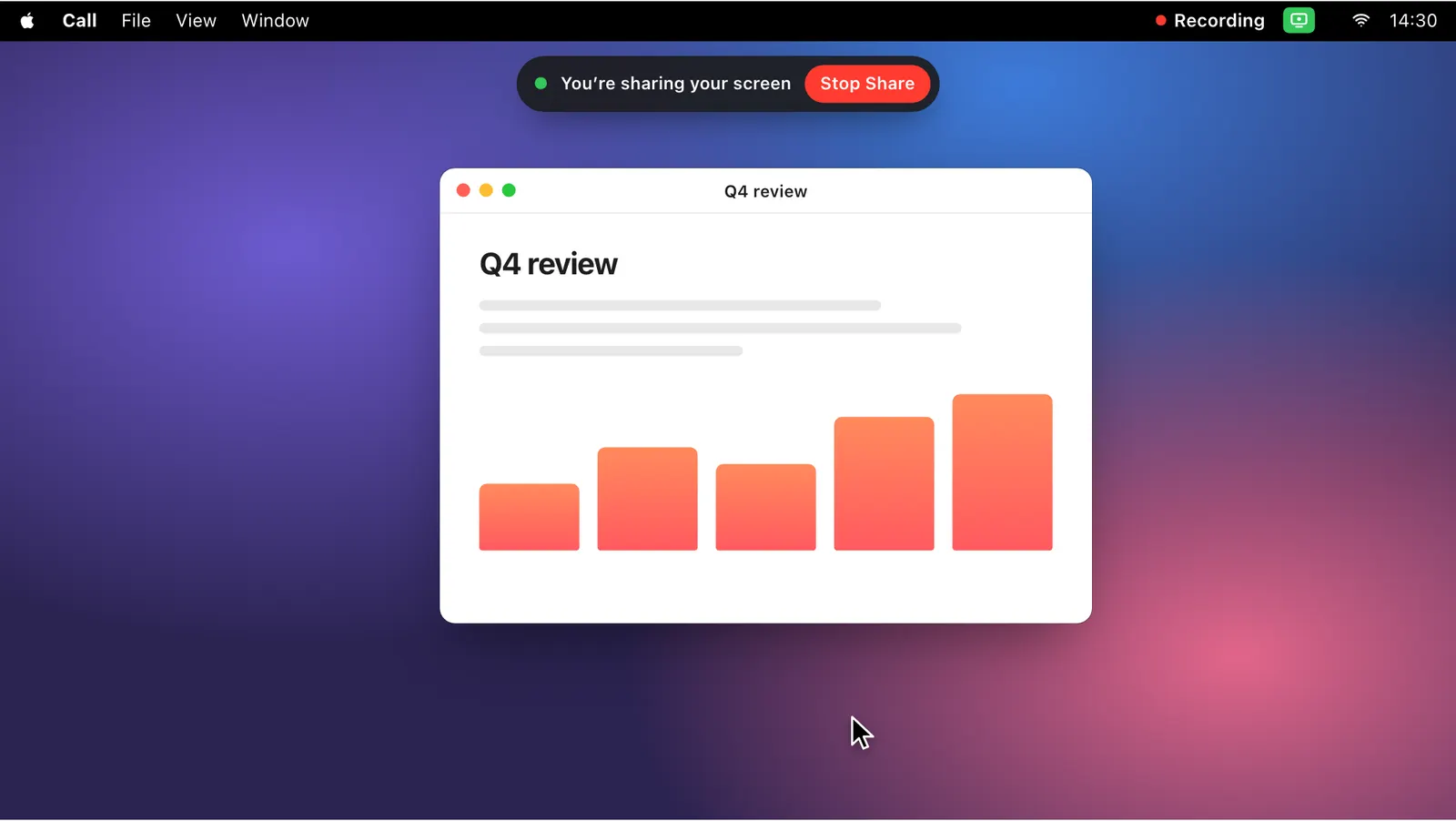
Many calls share the whole screen, and a recording sees all of it. Sharing a single window is not always an option, and closing or hiding everything else by hand before a demo is slow and easy to get wrong.
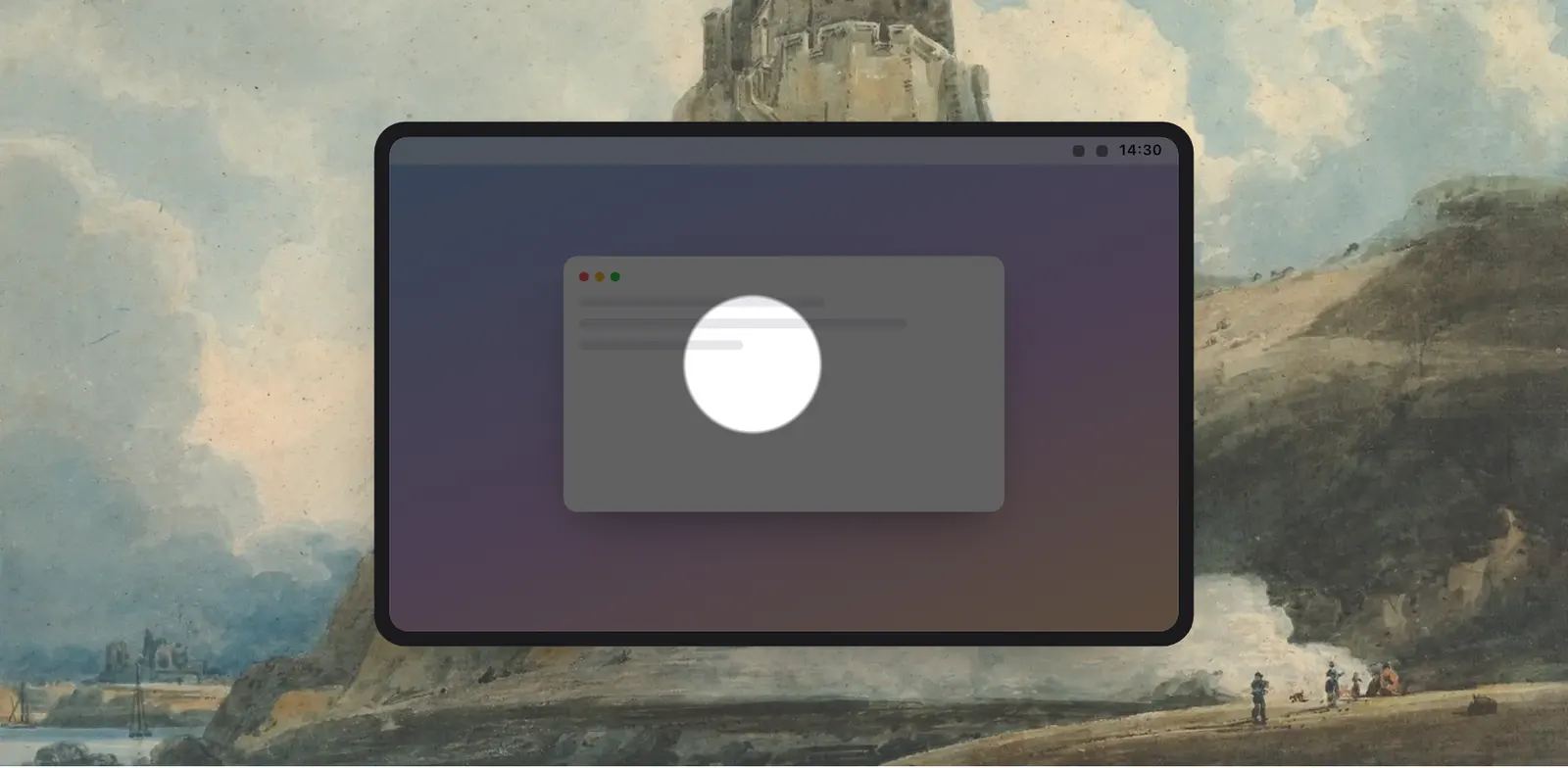
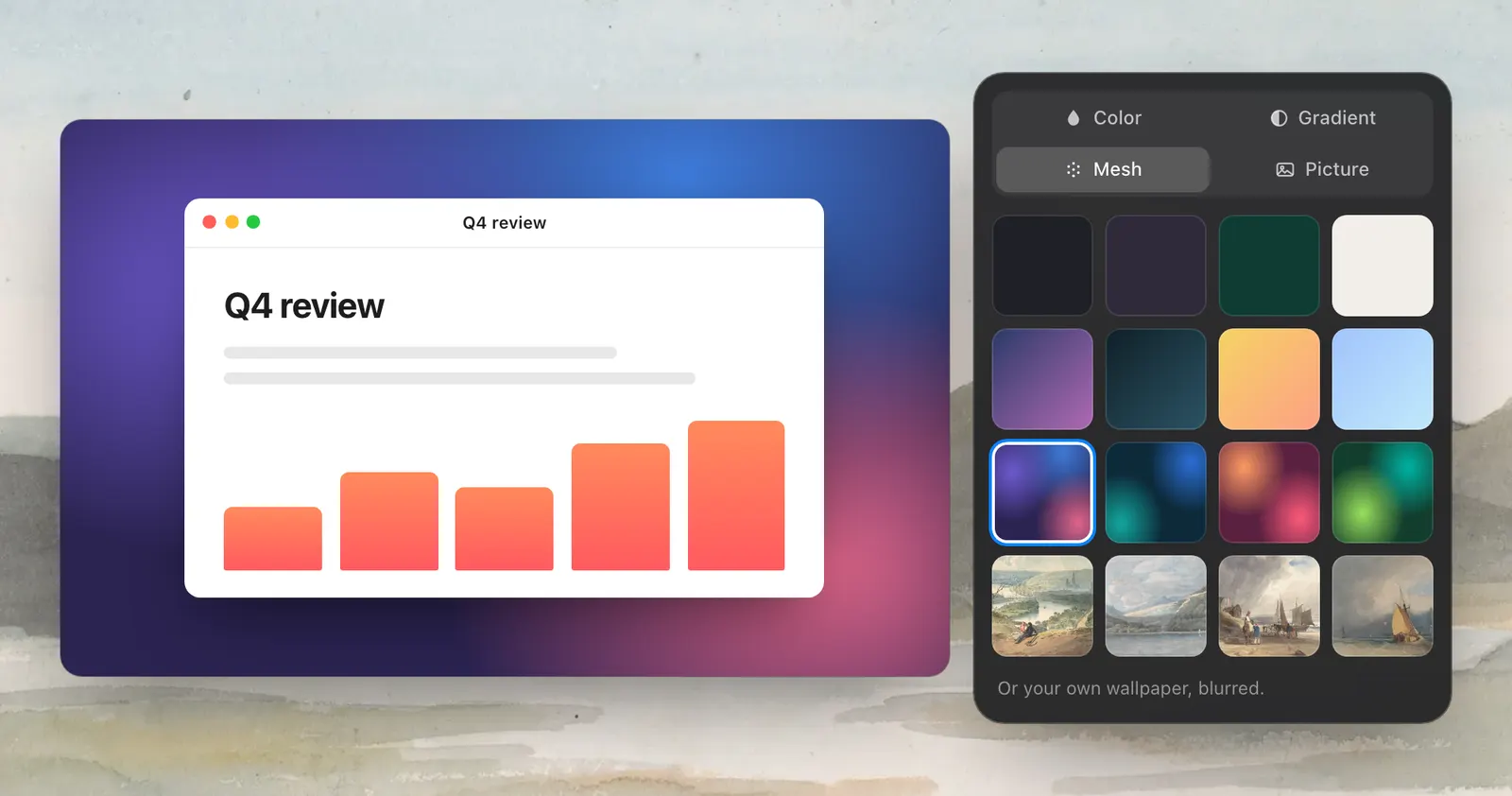
Turn on Backdrop and the area behind the app in front is filled. The desktop, the other windows and whatever is in them are behind the fill, out of the share and out of the recording. The app in front stays on top, and when you switch to another app the backdrop follows, so the window you bring forward is always the one in front of it.
Four kinds of look
Click Backdrop’s name in the dropdown to open its page. It has four tabs: Color, Gradient, Mesh and Picture. Levers comes with 14 colours, 14 gradients and 14 soft meshes, and you can mix any colour of your own and save the ones you use.
Picture takes any image, or your own wallpaper, blurred. Backdrop remembers the look you picked last and uses it the next time.
- Plain colours, including your own saved ones
- Gradients and soft meshes
- Any picture, or your wallpaper blurred
Up when you share, gone when you stop
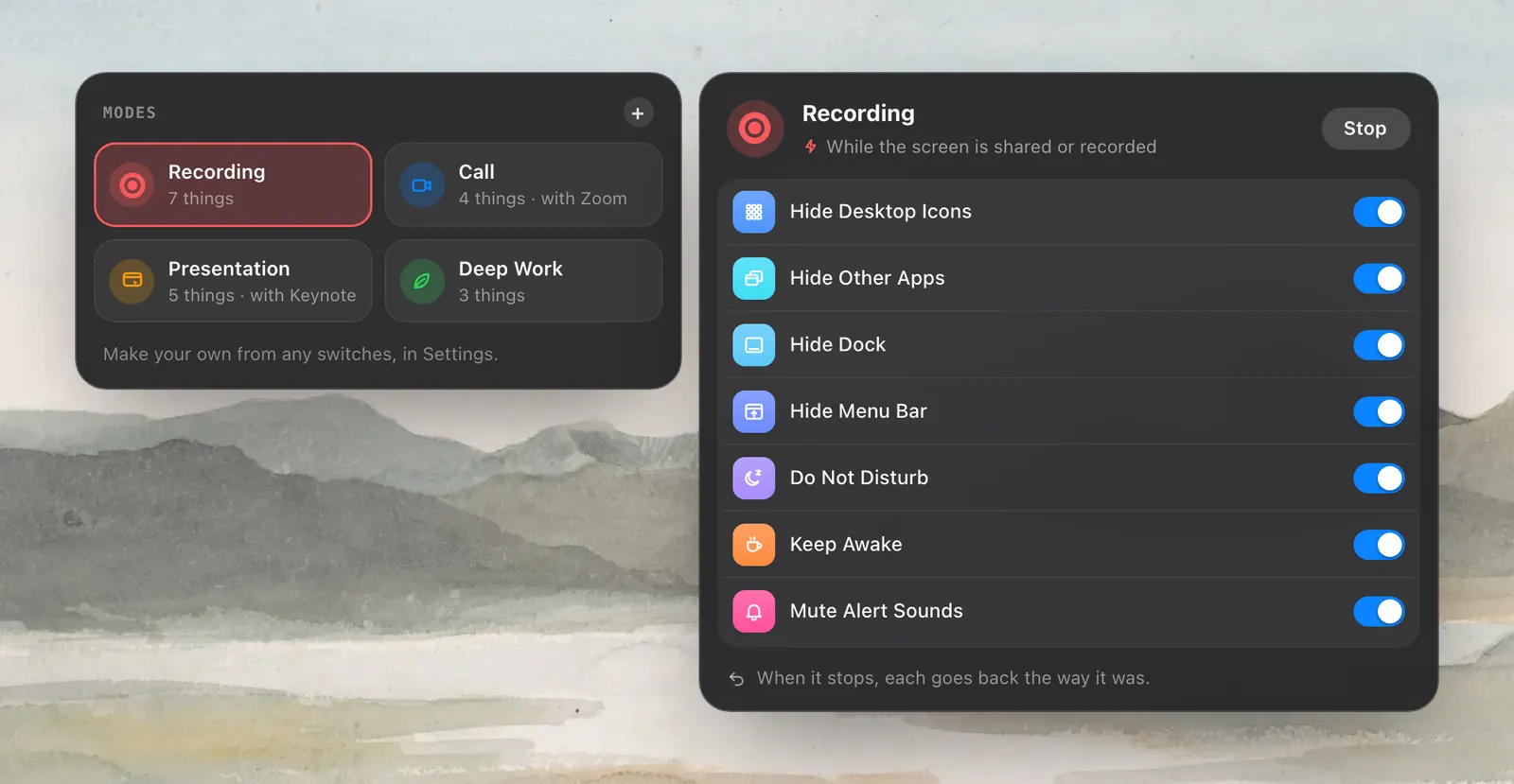
Backdrop is a switch, so it can be a step in a mode. Add it to Recording Mode and it comes up the moment a share starts and goes when the share ends. It can also have a hotkey of its own in Settings › Shortcuts for the times you want it without a mode.
Apps you choose to keep, listed in Settings › Switches, stay in front of the backdrop along with the app in front. That is how a screen recorder’s controls stay visible while everything else is covered.

What it doesn’t change
Backdrop is drawn over the desktop. It doesn’t replace your wallpaper, and when you turn it off the wallpaper is as it was. It shows in a screen share on purpose: people watching see the app and the backdrop, not your desktop.
macOS has no setting for a plain screen behind one app. The nearest things are hiding each app by hand or changing the wallpaper, and neither follows you from app to app.
How to use it
- 1
Turn on Backdrop
Click Backdrop in the dropdown, on the Screen tab.
- 2
Pick a look
Click its name to choose a colour, a gradient, a mesh or a picture.
- 3
Add it to a mode
In Settings › Modes, add Backdrop to Recording Mode so it comes up when you share.
The details
- Looks
- 14 colours, 14 gradients, 14 soft meshes, any colour you mix, a picture, or your wallpaper blurred and dimmed
- Covers
- The desktop and every window behind the app in front
- Stays in front
- The app in front, and the apps you keep in Settings › Switches
- In a screen share
- Visible, by design
- Your wallpaper
- Unchanged
- Where it is
- The Screen tab of the dropdown
Questions
Does the backdrop show in a screen share?
Yes, and that is the point. People watching see the app and the backdrop, not your desktop.
Can I keep my screen recorder visible?
Yes. Apps you keep, listed in Settings › Switches, stay in front of the backdrop.
Can I use my own picture or my wallpaper?
Yes. Pick any picture, or use your wallpaper blurred.
Does Backdrop change my wallpaper?
No. It is drawn over the desktop, and your wallpaper is as it was once Backdrop is off.
The same feature on the app's own site: leversmac.com/features/backdrop