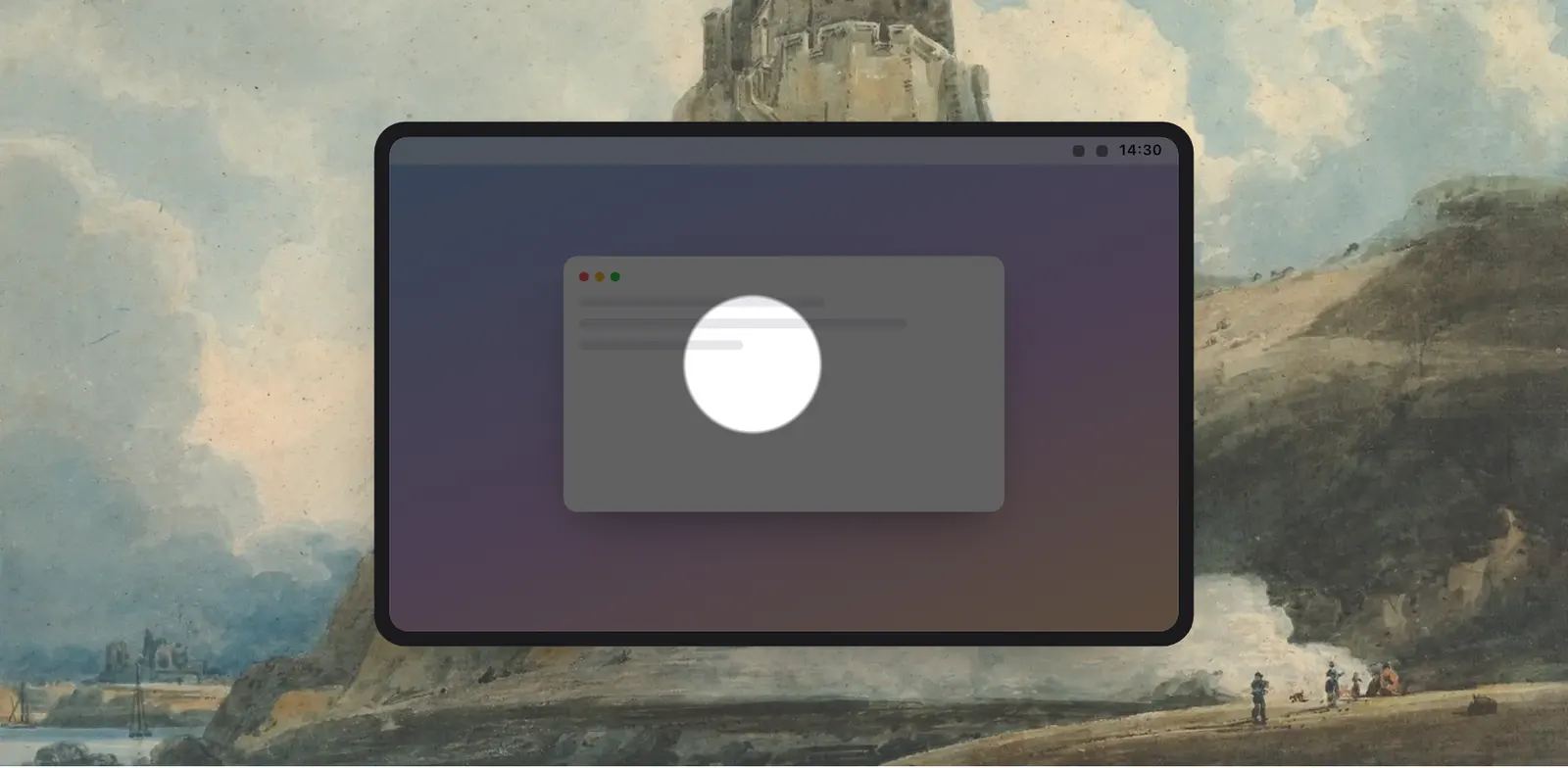
The screen dims, the pointer doesn’t
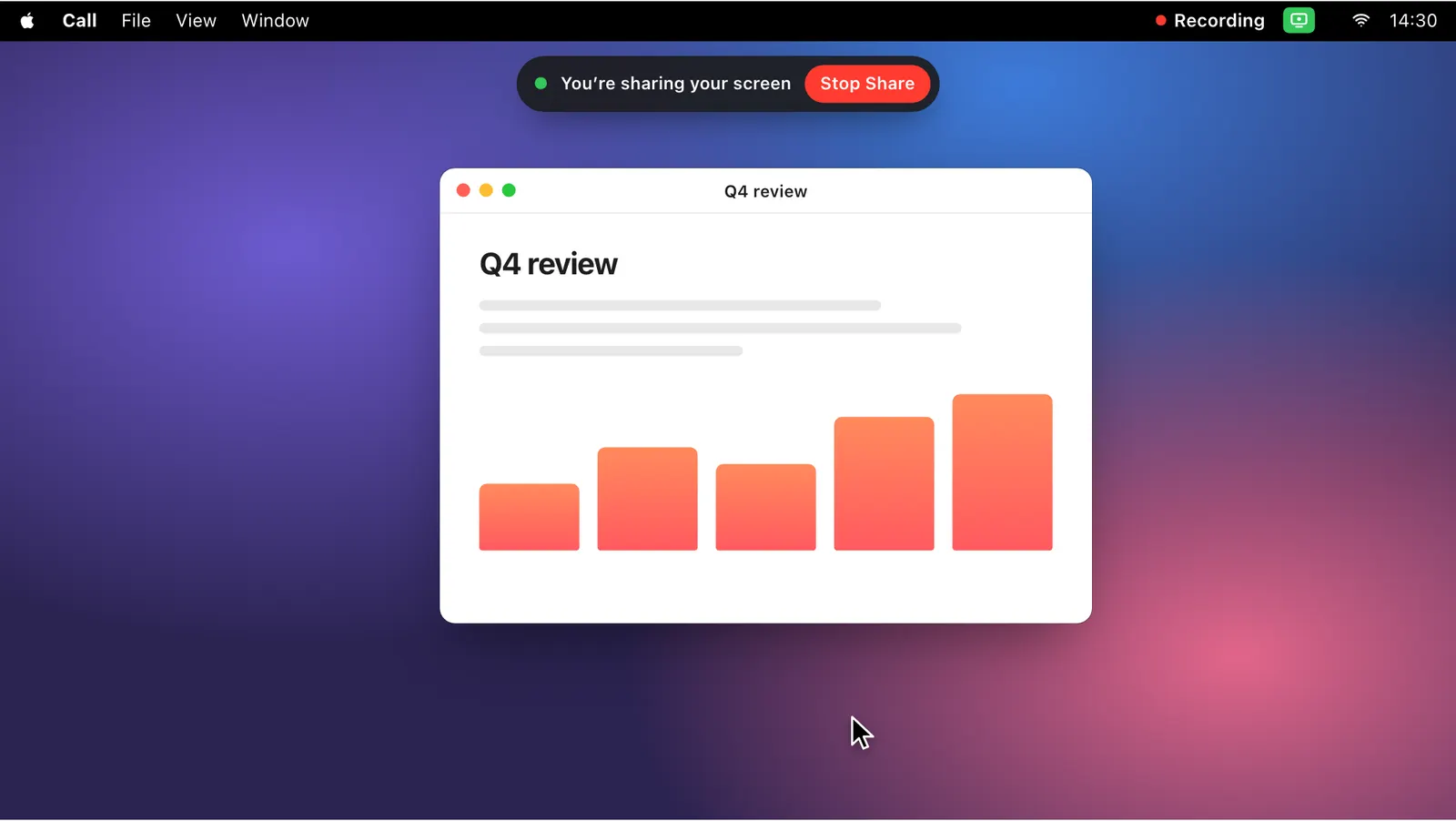
In a call or a recording, viewers lose the pointer. It is small, the screen is large, and many of them are watching on a laptop. Waving it about helps for a second.
With Pointer Spotlight on, everything but a shape around the pointer goes dim, and the shape follows the pointer as you move. It sits over every app, so it works the same over slides in Keynote or PowerPoint, a browser or a code editor.
It only draws. Your clicks pass through to the app underneath, so you keep working as usual while it is on.
Four shapes, three sizes, three levels of dim
Click the switch’s name to open its options. The shape can be a Circle, a Square, a Rectangle or a Band. A circle suits a pointer. A rectangle suits a paragraph. A band runs across the screen, which suits a line of code or one row of a table.
Each shape comes in Small, Medium and Large, and the area around it can be dimmed Light, Medium or Dark. Levers keeps your choice for the next time.
- Shape: Circle, Square, Rectangle or Band
- Size: Small, Medium or Large
- Dim: Light, Medium or Dark

On for the part that needs it
You rarely want the spotlight for a whole talk. Give it a hotkey in Settings › Shortcuts and turn it on for the one part of a demo where people must follow the pointer, then off again. The palette finds it by name, and by “cursor”, “highlight” or “presentation”.
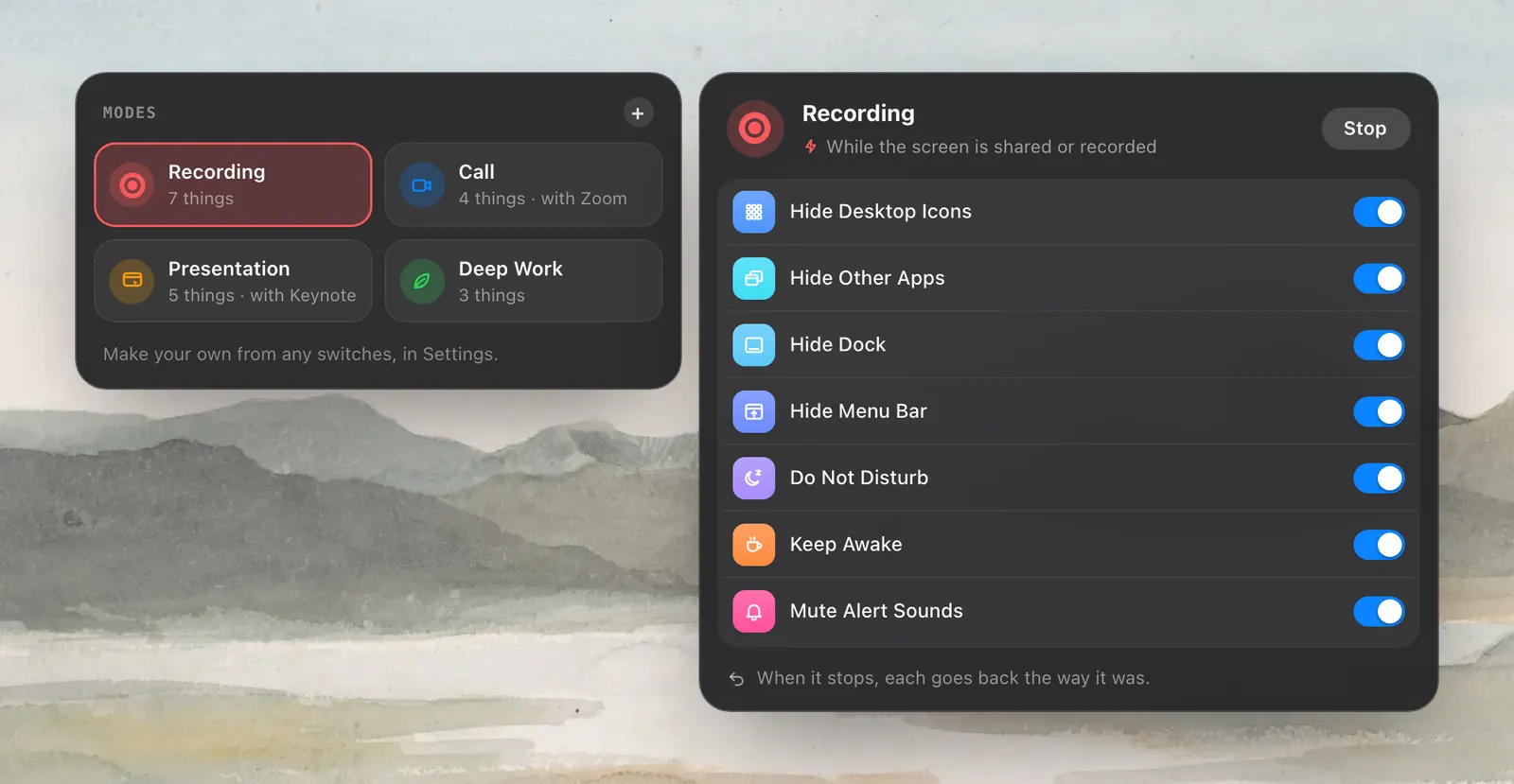
It can also be a step in a mode, so a presentation mode of your own turns it on with everything else and turns it off at the end. Recording Mode can include it too.
Compared with what macOS has
macOS can make the pointer bigger, and it can grow the pointer for a moment when you shake the mouse. Both help you find it. Neither dims the rest of the screen, and neither is made for an audience.
Pointer Spotlight is meant to be seen by other people, which is why it shows in a share. Snow, by contrast, is kept out of shares and recordings.
How to use it
- 1
Turn on Pointer Spotlight
Click it in the dropdown, on the Screen tab.
- 2
Pick the shape, size and dim
Click its name to open its options.
- 3
Give it a hotkey
In Settings › Shortcuts, so you can turn it on in the middle of a talk.
The details
- Shapes
- Circle, Square, Rectangle, Band
- Sizes
- Small, Medium, Large
- Dim
- Light, Medium, Dark
- In shares and recordings
- Visible
- Clicks
- Pass through to the app underneath
- Where it is
- The Screen tab of the dropdown
Questions
Does Pointer Spotlight show in a screen share or recording?
Yes. It is meant to be seen by the people watching.
Can I use it over Keynote or PowerPoint?
Yes. It sits over every app, so it works over slides, a browser or code.
Can I still click while it is on?
Yes. It only draws, and your clicks reach the app under it.
Can I highlight a line of text and not just the pointer?
Yes. Choose the Band shape for a strip across the screen, or Rectangle for a paragraph.
The same feature on the app's own site: leversmac.com/features/pointer-spotlight