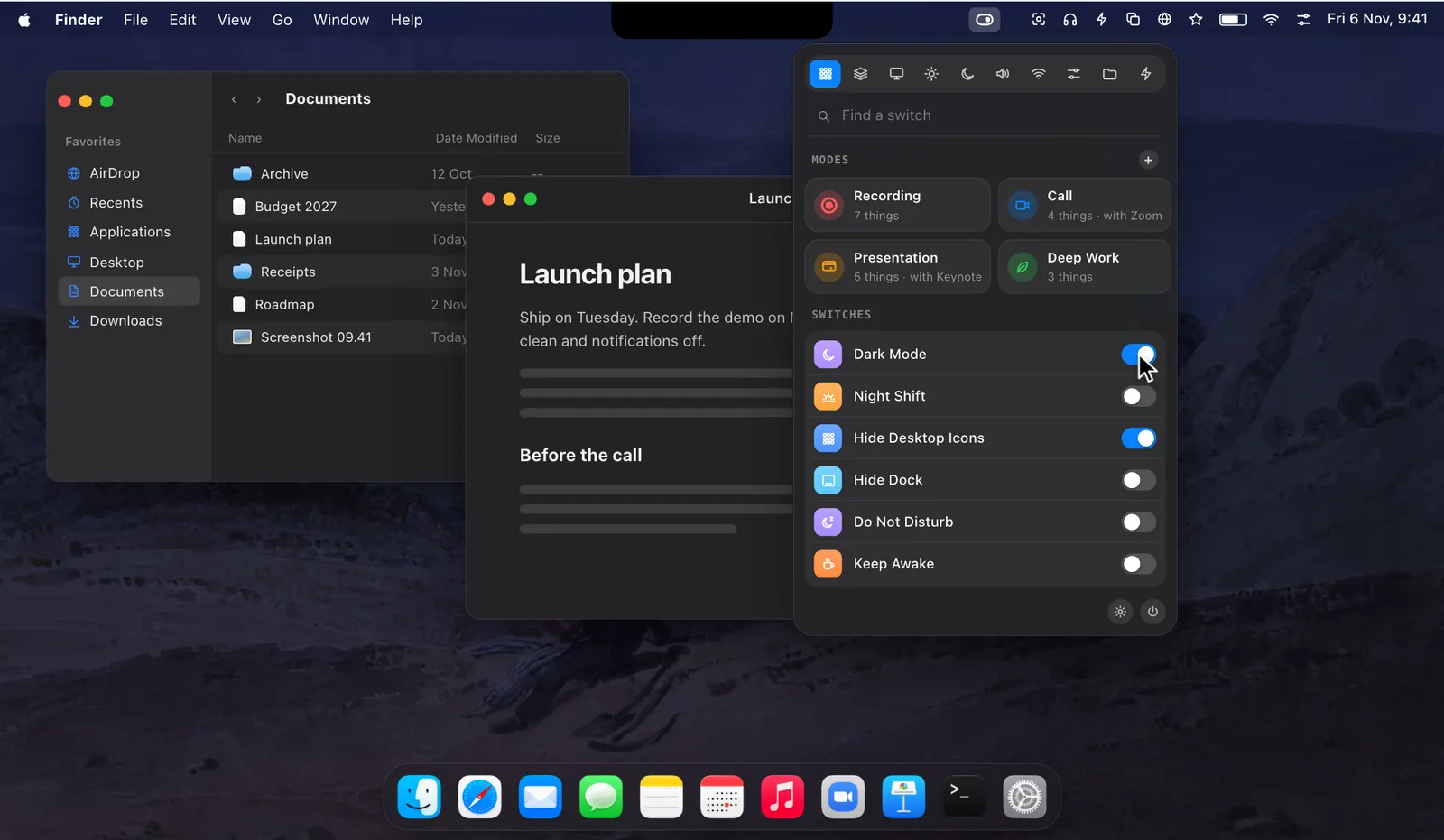

Every key, on every keyboard
Wipe a Mac’s keyboard while it is on and you type into whatever is in front, run shortcuts and perhaps quit an app. The usual answer is to shut the Mac down, clean it, and wait for it to start again.
With Lock Keyboard on, letters, numbers, shortcuts and the function keys do nothing. That goes for the built-in keyboard and for any other keyboard, Bluetooth ones included. You can press as hard as the cleaning needs. A note on the screen says how to unlock, so nobody is left guessing.
The trackpad and the mouse keep working. Only the keys are held.
Two ways to unlock
Press Esc five times in a row and the keyboard is back at once. The five presses have to come one after another. Or use the trackpad, which still works, to click Lock Keyboard off in the dropdown. There is no restart and no password.

It unlocks itself
Lock Keyboard turns itself off after five minutes, so you can’t be locked out by accident. If five minutes is not what you want, set another time on its page, which opens when you click the switch’s name. While the lock is on you can see the time left, and +15m and +1h add more if the cleaning takes longer.

What it needs
To hold key presses back before they reach your apps, Levers needs the Accessibility permission. macOS asks for it the first time you turn the switch on, and not again. If you say no, Lock Keyboard can’t work, and every other switch carries on as before.
macOS has no switch of its own for this. In Levers it is on the Focus & Power tab of the dropdown. To turn it on without the mouse, give it a hotkey in Settings › Shortcuts, or type “lock” in the palette.
Lock Keyboard or Cleaning Mode
The two are for different jobs. Lock Keyboard holds only the keys and leaves the screen and the trackpad as they are, which suits a quick wipe of the keys. Cleaning Mode also turns the screen black and ignores clicks and gestures, so you can wipe the screen and the trackpad as well. Both turn themselves off: Lock Keyboard after five minutes, Cleaning Mode after two.
How to use it
- 1
Turn on Lock Keyboard
Click Lock Keyboard in the dropdown. macOS asks for Accessibility the first time.
- 2
Wipe the keys
Nothing types and no shortcut runs.
- 3
Unlock
Press Esc five times in a row, or click the switch off with the trackpad.
The details
- Holds back
- Every key, on every keyboard
- Still works
- The trackpad and the mouse
- Unlock
- Esc five times in a row, or click it off
- Unlocks by itself
- After 5 minutes, or the time you set
- Permission
- Accessibility, asked for once
- Where it is
- The Focus & Power tab of the dropdown
Questions
Does it lock a Bluetooth keyboard too?
Yes. It holds back key presses from every keyboard connected to the Mac.
Does the trackpad still work while the keyboard is locked?
Yes. Only the keys are held, so you can click to unlock.
What if I forget how to unlock it?
A note on the screen says how, and the lock ends by itself after five minutes.
Why does it need Accessibility?
To hold key presses back before they reach your apps.
Can it black out the screen as well?
That is Cleaning Mode, which turns the screen black and also ignores clicks.
The same feature on the app's own site: leversmac.com/features/lock-keyboard