
One click, and the Mac stays up
A Mac sleeps when you stop touching it. Most of the time that is right. It is wrong during a long build, a migration, a large download, a coding agent working through a task, or a call where you are talking and not typing.
Turn on Keep Awake and the screen doesn’t dim or sleep, and neither does the Mac. The switch is on the Focus & Power tab, and it can have a hotkey like any other.
It ends by itself
To begin with, Keep Awake turns off after two hours, so the Mac is never left awake by accident. Click its name to change that. You can pick a length from 5 minutes to 4 hours, a clock time, or no end at all.
While it runs, its row shows the time left, and its page has buttons that add 15 minutes, an hour or four hours.
- Two hours to start with
- A length, a clock time, or No end
- +15m, +1h and +4h while it runs

Awake without asking
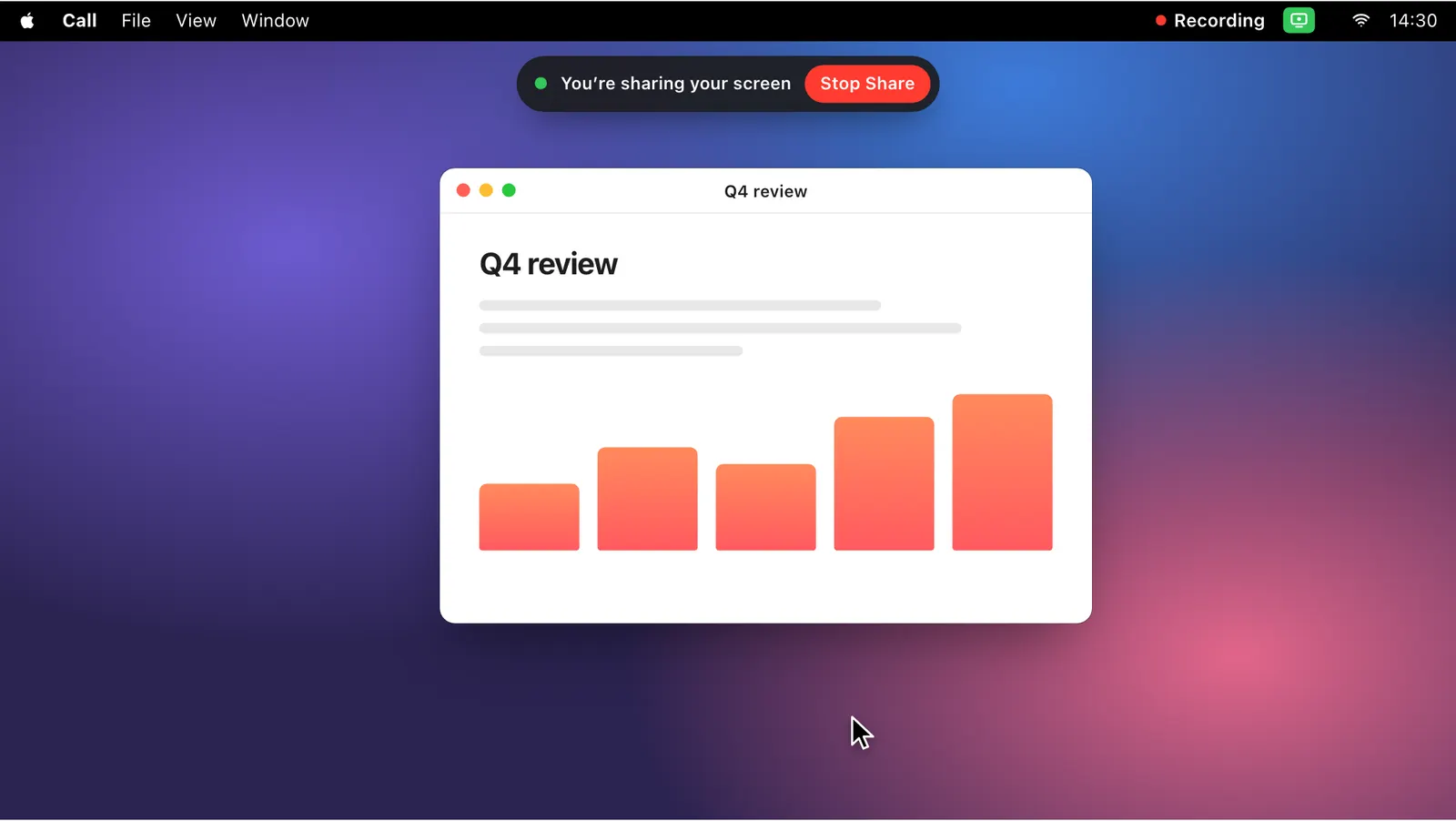
Keep Awake is one of the things Recording Mode turns on, so a shared screen doesn’t go dark in the middle of a call. A rule can do the same for other moments: Levers suggests one that keeps the Mac awake while a second display is connected, and you can write one for any app that is open.
When the mode or the rule ends, Keep Awake goes back to how it was.

Compared with caffeinate
Terminal’s caffeinate does this job if you remember the command and remember to stop it. Keep Awake asks macOS in the same way caffeinate -d does. The differences are around it: a click to start, the time left in view, an end that comes by itself, and more time when you need it.
caffeinate can end by itself as well, with -t and a number of seconds, but it can’t be given more time once it is running.
One thing it doesn’t do is keep a MacBook running with the lid closed. Closing the lid puts it to sleep, as macOS always does.
From the keyboard
Give Keep Awake a hotkey in Settings › Shortcuts, or press ⌃⌥Space and type “awake” in the palette. The palette knows it by other words too: “caffeine”, “insomnia” and “sleep” all find it. Like every switch, it is also an action in the Shortcuts app.
How to use it
- 1
Turn on Keep Awake
Click Keep Awake in the dropdown.
- 2
Change when it ends
Click its name and pick a length, a clock time, or No end.
- 3
Add time while it runs
Click +15m, +1h or +4h on its page.
The details
- Keeps awake
- The screen and the Mac
- Ends
- After two hours, unless you choose otherwise
- You can set
- A timer from 5 minutes to 4 hours, a clock time, or no end
- While it runs
- +15m, +1h, +4h, and the time left on its row
- Lid closed
- The MacBook sleeps, as macOS does
- Where it is
- The Focus & Power tab of the dropdown
Questions
Is Keep Awake the same as caffeinate?
It asks macOS the same way caffeinate -d does. Unlike the command, it ends by itself, so the Mac isn’t left awake by accident.
Does it keep a MacBook awake with the lid closed?
No. Closing the lid puts a MacBook to sleep, as macOS does.
Can it stay on with no end?
Yes. Pick No end on its page.
Can it turn on by itself?
Yes. It is part of Recording Mode, and a rule can turn it on while an app is open or a second display is connected.
The same feature on the app's own site: leversmac.com/features/keep-awake