
Black, because smudges show on black
Cleaning a screen that is switched on means looking past the picture to find the marks, and every touch of the keys or the trackpad types or clicks into whatever is open. Most people shut the Mac down to clean it.
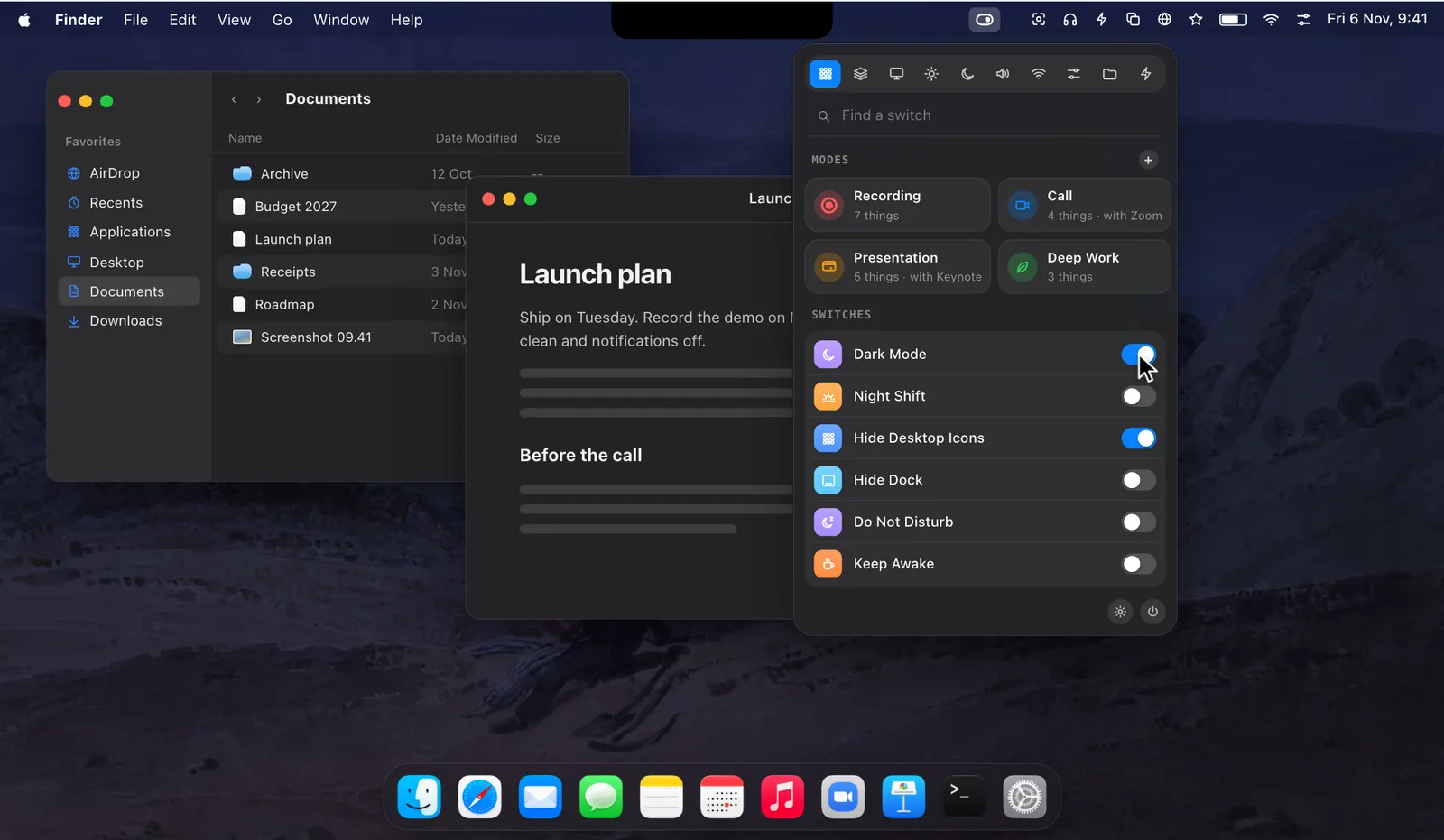
Cleaning Mode gives you that dark screen in one click, with no shutdown and no restart to wait for. The whole screen goes black, on every display connected to the Mac, so each fingerprint and smear is easy to see. One dim line at the bottom says how to finish.
Nothing you touch does anything
While it is on, key presses, clicks and trackpad gestures are all held back. You can wipe the screen, then the keyboard, then the trackpad, and nothing types, nothing is clicked and nothing swipes. No app opens and none quits.
Holding input back this way needs the Accessibility permission, the same one Lock Keyboard uses. macOS asks for it the first time you turn Cleaning Mode on. If you say no, Cleaning Mode can’t work, and the rest of Levers carries on.

Two ways out
Press Esc five times in a row to finish. The presses have to come one after another. If you walk away, Cleaning Mode ends by itself after two minutes, so the Mac is never stuck on a black screen. Two minutes is the starting value, and you can set another on its page, which opens when you click the switch’s name in the dropdown.
Either way, the screen comes back as it was.
Cleaning Mode or Lock Keyboard
Levers has two switches for cleaning, and they differ in how much they hold back. Lock Keyboard holds only the keys. The screen stays on and the trackpad works, so you can unlock it with a click. It turns itself off after five minutes.
Cleaning Mode goes further: the screen goes black, and clicks and gestures are ignored along with the keys. Because the trackpad is ignored too, Esc five times is the way out, with the two-minute limit behind it. Both are on the Focus & Power tab, and the palette finds Cleaning Mode when you type “wipe”.
How to use it
- 1
Turn on Cleaning Mode
Click Cleaning Mode in the dropdown. macOS asks for Accessibility the first time.
- 2
Wipe the screen, the keys and the trackpad
Nothing you touch does anything.
- 3
Finish
Press Esc five times in a row, or wait two minutes.
The details
- Screen
- Black, on every display
- Ignored
- Keys, clicks and trackpad gestures
- Finish
- Esc five times in a row
- Ends by itself
- After 2 minutes, or the time you set
- Permission
- Accessibility, asked for once
- Where it is
- The Focus & Power tab of the dropdown
Questions
How do I get out of Cleaning Mode?
Press Esc five times in a row. It also ends by itself after two minutes.
Does it black out an external display too?
Yes. Every display connected to the Mac goes black.
What is the difference between Cleaning Mode and Lock Keyboard?
Lock Keyboard holds only the keys and leaves the screen and trackpad as they are. Cleaning Mode blacks out the screen and ignores clicks too.
Do I lose my open windows?
No. When it ends, the screen comes back as it was.
The same feature on the app's own site: leversmac.com/features/cleaning-mode