Hidden files, on and off
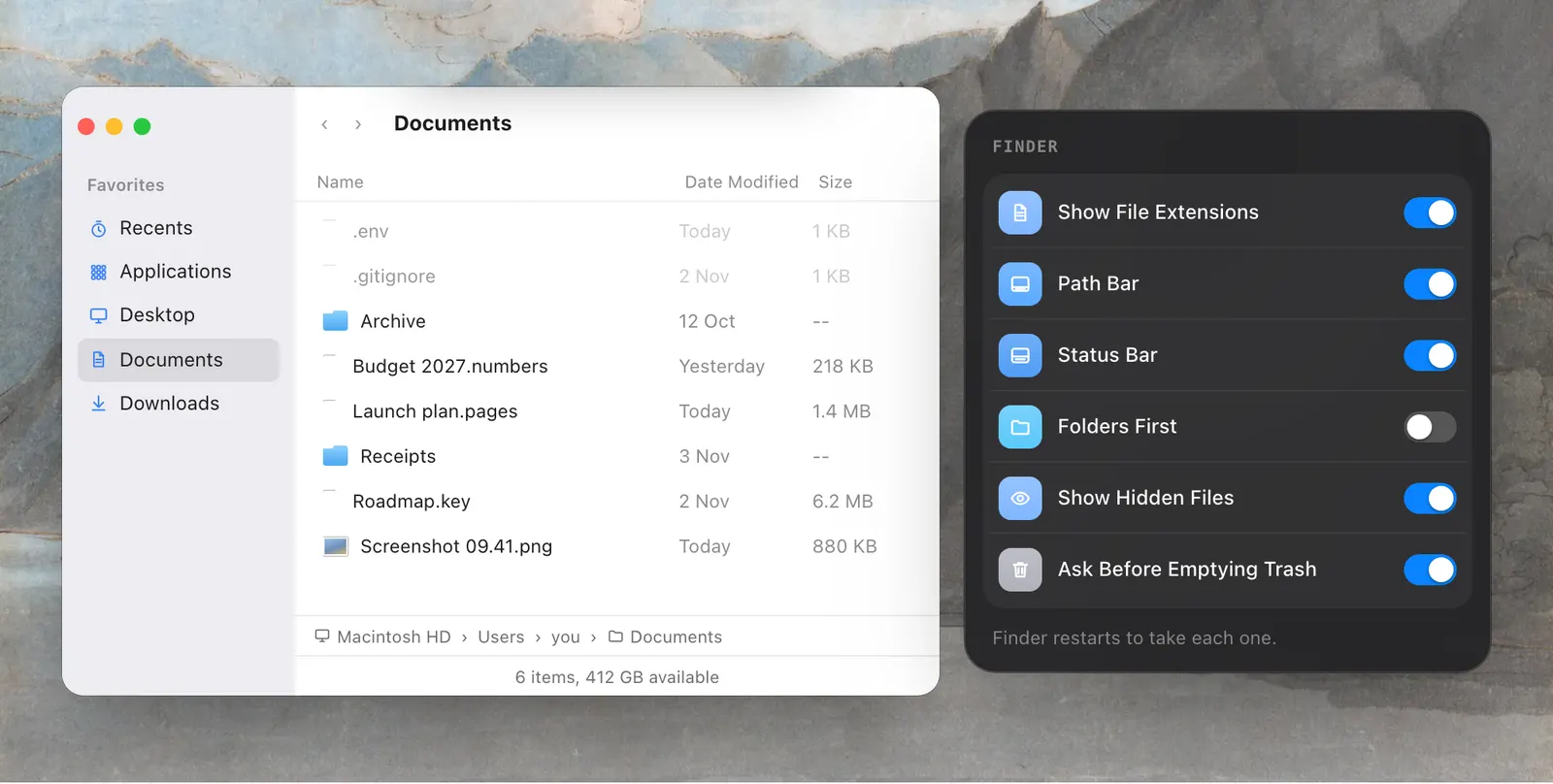
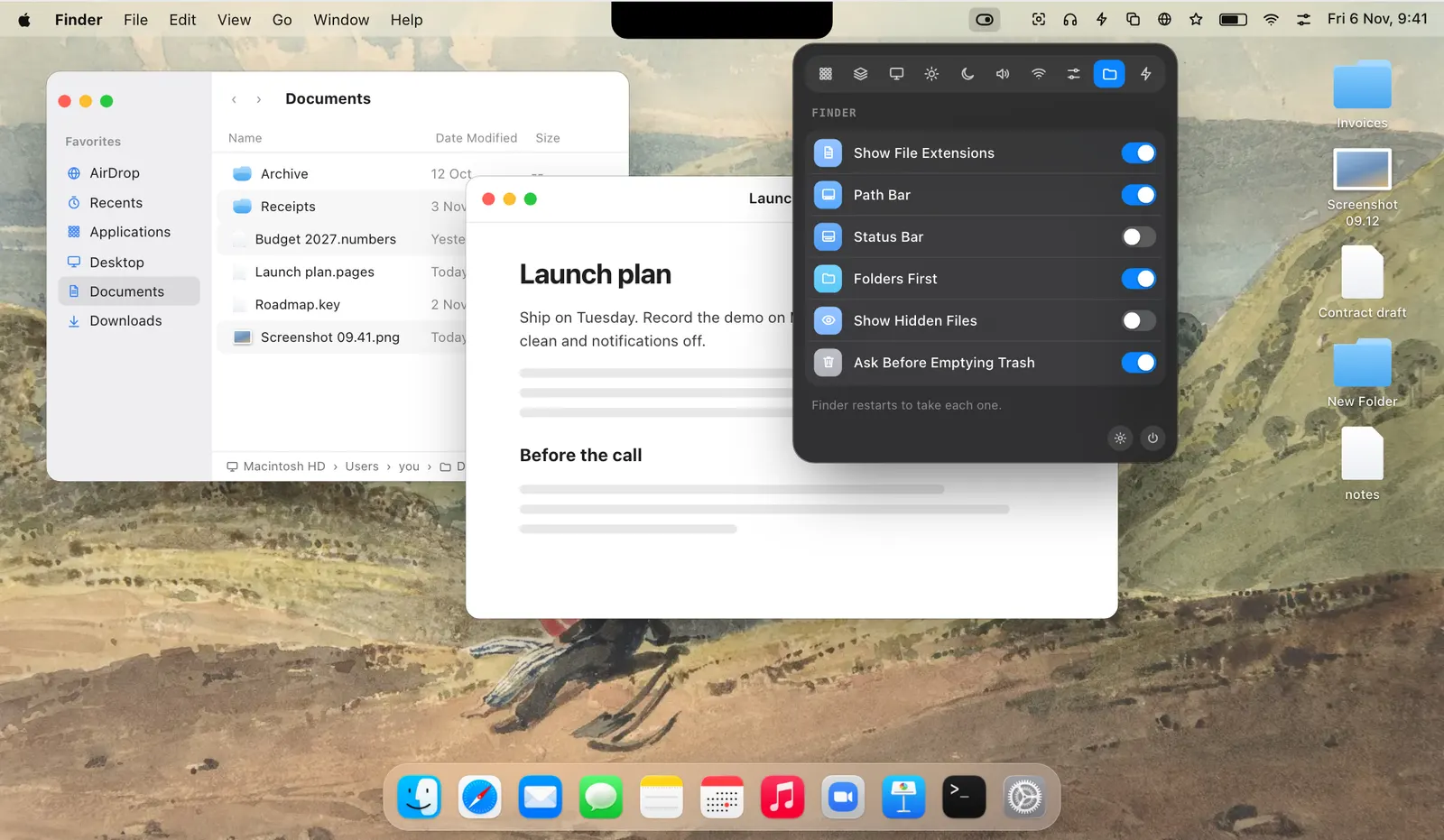
Show Hidden Files reveals what Finder normally keeps out of sight: files whose names start with a dot, such as .gitignore and .env, and the folders macOS hides. Turn the switch off when you are done and they are hidden again.
macOS has its own ways, ⇧⌘. in a window or a Terminal command. The switch writes the same setting the command would, and it stays in the dropdown where you can see whether hidden files are showing. Many people look that command up again every time they need it. Give the switch a hotkey if you use it often. Leave alone anything you don’t recognise: some of what appears are system folders.
Extensions, the path bar and the status bar
Show File Extensions puts .pdf, .jpg and .txt at the end of every file’s name. Path Bar draws the route to the current folder along the bottom of each Finder window. Status Bar shows how many items are in the folder and how much space is free. Folders First lists folders ahead of files when a window sorts by name.
Without Levers these live in two places: Finder Settings › Advanced for extensions and folders first, and the View menu for the two bars. Here they are one list, together with Ask Before Emptying Trash, which makes Finder confirm before it empties the Trash.
Why Finder restarts
Finder reads these settings when it starts, so a change shows only after it restarts. Levers does that for you each time you flip one of these switches. It takes a second and leaves your files as they are.
Each switch works in both directions. Turn it off and the setting goes back to what it was, with another short restart. That suits hidden files in particular: show them while you edit a .env file or check a .gitignore, then hide them again.
Finder chores as actions
The Finder jobs that run once are actions. Restart Finder quits it and opens it again when it stops responding. Empty Trash deletes everything in the Trash for good, after asking. Eject All Disks ejects every external drive, disk image and memory card. Sort Desktop lines up the desktop’s icons by name, kind, date or size.
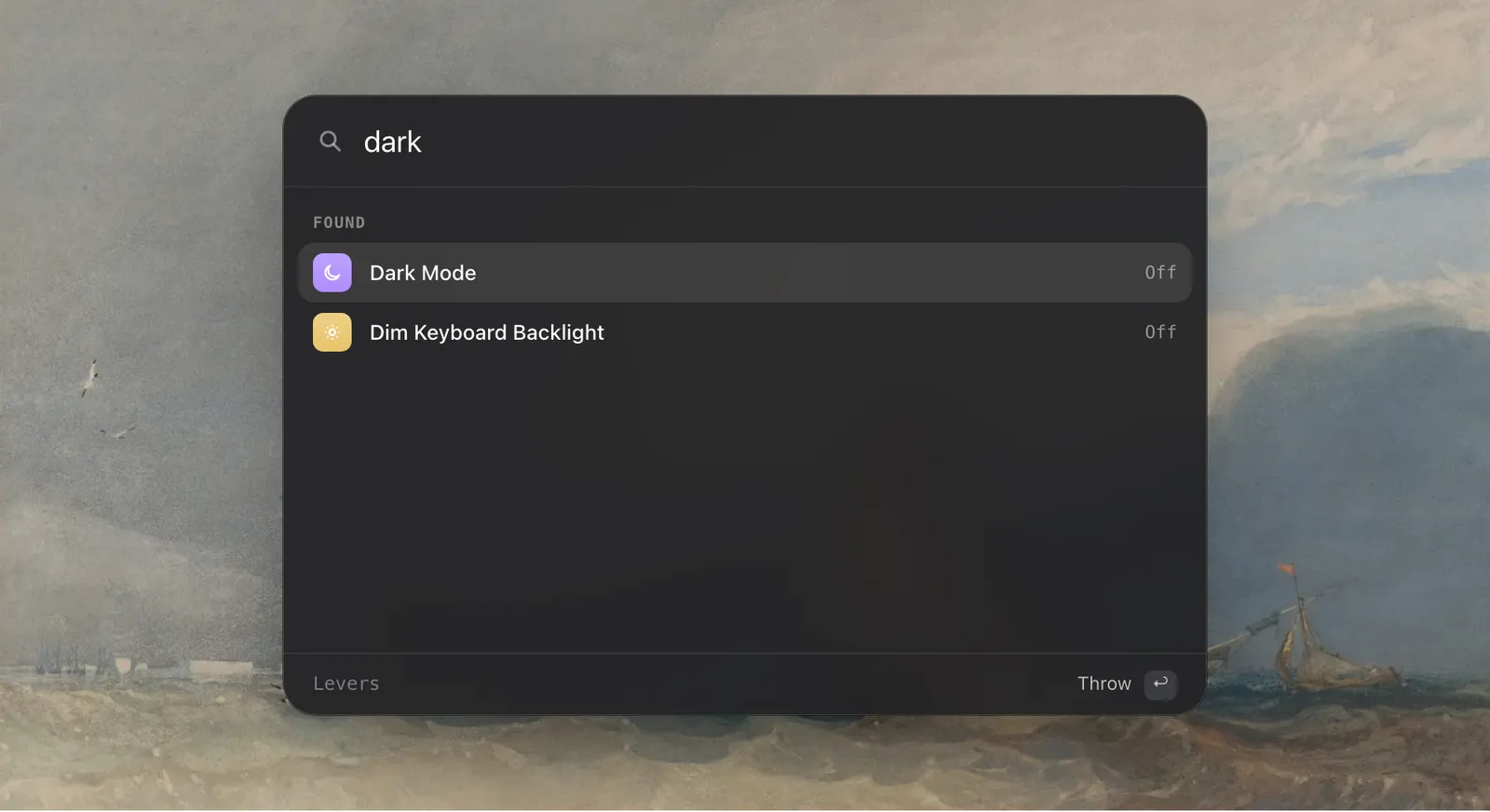
Each action is in the dropdown and in the palette, so ⌃⌥Space, “eject” and Return is enough.

How to use it
- 1
Open the Finder tab
Click the asterisk in the menu bar, then the folder tab in the dropdown.
- 2
Turn a switch on
Finder restarts to take the change, which takes a second.
- 3
Turn it off when you are done
The setting goes back to what it was.
The details
- Switches
- Show Hidden Files, Show File Extensions, Path Bar, Status Bar, Folders First, Ask Before Emptying Trash
- Actions
- Restart Finder, Empty Trash, Eject All Disks, Sort Desktop
- Finder restarts
- By itself, after each of these switches
- The macOS way
- ⇧⌘. or Terminal for hidden files, Finder Settings › Advanced, the View menu
- Permission
- Control of Finder, to empty the Trash
- Where it is
- The Finder tab of the dropdown
Questions
Is this the same as the Terminal command for hidden files?
Yes. Levers writes the same setting and restarts Finder, and turns it off again the same way.
Why does Finder restart when I flip a switch?
Finder reads these settings when it starts. The restart takes a second and doesn’t touch your files.
Does Show Hidden Files show system files too?
It shows everything Finder hides, which includes dotfiles and some system folders. Leave what you don’t know as it is.
Can I show the path bar and status bar in every window?
Yes. Path Bar and Status Bar are a switch each, and they apply to every Finder window.
The same feature on the app's own site: leversmac.com/features/finder